
Learning how to Flash ROM Xiaomi MiFlash properly lets you rescue bootlooping Xiaomi, Redmi, and POCO devices, switch clean stock HyperOS or MIUI builds, and restore corrupted system partitions without hard-bricking the motherboard. While official MiFlash Tool is free and straightforward over Fastboot Mode on unlocked-bootloader devices, two hidden traps destroy thousands of phones every year: clicking "clean all and lock" on a China-region unit running a Global ROM, and trying to flash a locked-bootloader Snapdragon phone in EDL 9008 without Xiaomi EDL Auth. This verified guide walks through every safe Fastboot step, exact MiFlash error fixes, and authorized EDL alternatives using AndroidWinTool ($1.03), DFT Pro ($1.19), and UnlockTool ($0.30) strictly on owner-authorized devices.
Table of Contents
- When can you use free Xiaomi MiFlash Tool vs paid EDL tools?
- What ROM format, drivers, and checks do you need before flashing?
- How do you flash a Xiaomi Fastboot ROM with MiFlash step by step?
- Why must you NEVER accidentally select "clean all and lock"?
- How do you fix common MiFlash errors and locked-bootloader bricks?
- Frequently Asked Questions
When can you use free Xiaomi MiFlash Tool vs paid EDL tools?
Free Xiaomi MiFlash Tool over Fastboot Mode works ONLY when the device's bootloader is already unlocked and the phone enters the Fastboot screen cleanly. If the bootloader is locked (for example, a bricked stock phone or HyperOS unit with "Bootloader state: locked"), free MiFlash will reject flashing — requiring an authorized EDL 9008 or MediaTek BROM tool instead.
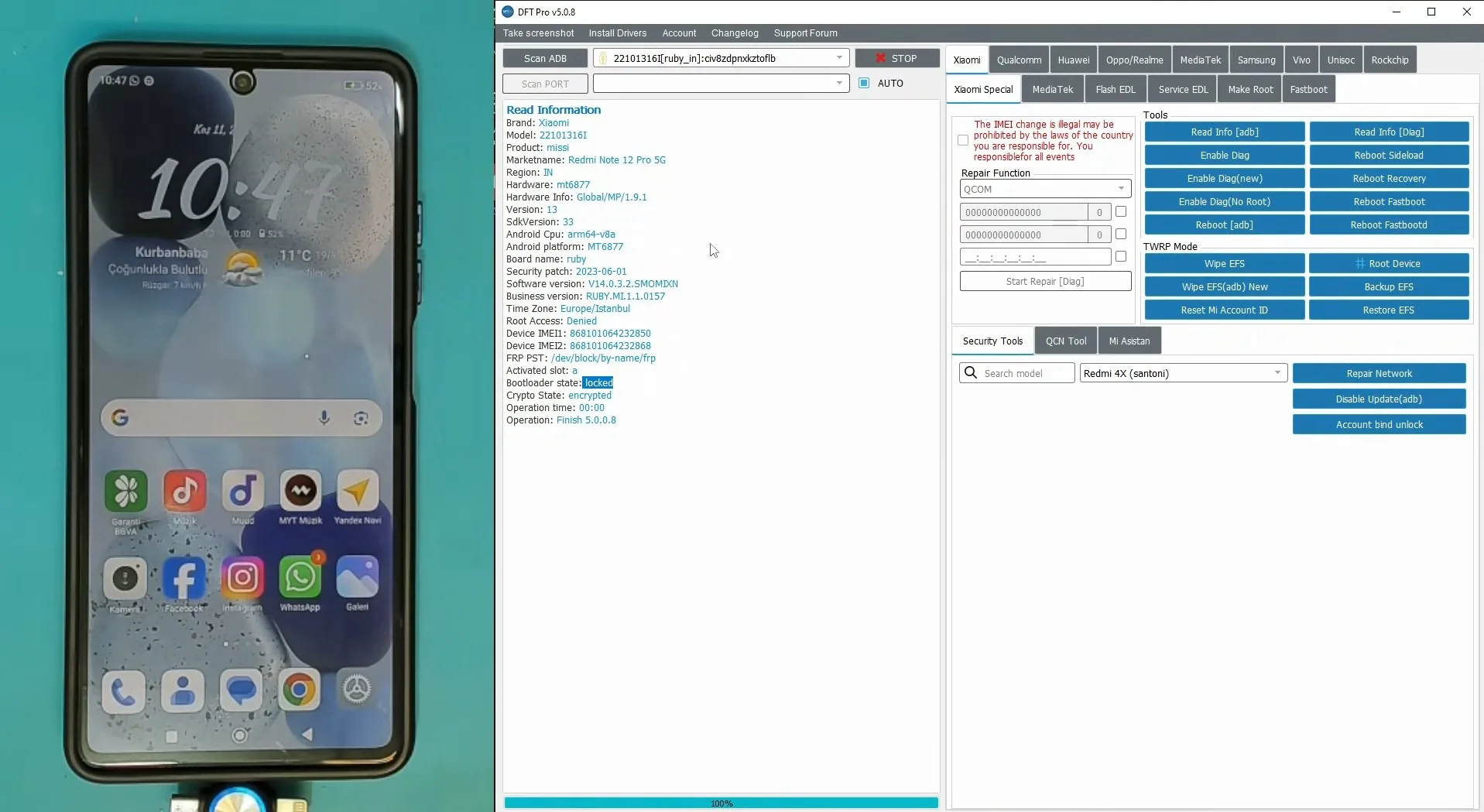
Always verify Bootloader state (locked vs unlocked), device codename (e.g., ruby), and hardware region (Global vs IN vs CN) before launching MiFlash.
| Device State | Free MiFlash (Fastboot) | Recommended Alternative |
|---|---|---|
| Bootloader Unlocked + Fastboot Working | Works cleanly (Free) | Fastboot scripts or DFT Pro / UnlockTool |
| Bootloader Locked + Qualcomm Snapdragon | Blocked ("Erase is not allowed in lock state") | EDL 9008 Auth via AndroidWinTool, AMT, DFT Pro |
| Bootloader Locked + MediaTek Dimensity/Helio | Blocked in Fastboot | MTK BROM / PreLoader Flash via UnlockTool or DFT Pro |
| Hard-Bricked (Black Screen, No Fastboot) | Not detected in Fastboot | Test Point EDL 9008 (Xiaomi Test Point guide) |
What ROM format, drivers, and checks do you need before flashing?
MiFlash requires a Fastboot ROM (.tgz archive) — NEVER a Recovery ROM (.zip file) — matched to your exact Xiaomi codename (for example, spes for Redmi Note 11 or tapas for Redmi Note 12 4G), plus signed Android Fastboot / WinUSB drivers from Google Platform-Tools and the Android WinUSB reference.
- Extract the .tgz archive TWICE to a short folder path: Use 7-Zip to extract .tgz → .tar → folder, then move the resulting folder directly to a short root path with zero spaces or special characters (such as C:\XiaomiROM\spes_global\) containing images\ and flash_all.bat.
- Verify Anti-Rollback (ARB) Index: On Snapdragon models with ARB protection, run fastboot getvar anti before downgrading. Never flash a ROM with a lower anti-rollback version than the phone's current index.
- Charge battery above 50% & back up data: Flashing a clean Fastboot ROM wipes userdata completely. Always back up photos and — on EDL repairs — archive modemst1/2, fsg, fsc, and persist first.
How do you flash a Xiaomi Fastboot ROM with MiFlash step by step?
Flashing an unlocked-bootloader Xiaomi phone with MiFlash takes six clean steps: boot into Fastboot Mode, connect to a rear USB port, load the extracted short-path ROM folder, select "clean all" at the bottom right, click Refresh to confirm the Fastboot ID, and click Flash without unplugging until the green success bar completes.
- Enter Fastboot Mode: Power off the Xiaomi/Redmi/POCO completely, then hold Volume Down + Power until the orange FASTBOOT text or Mi Bunny screen appears.
- Install & verify drivers: Open Windows Device Manager (or see our GSM USB drivers guide) and confirm Android Bootloader Interface appears with no yellow exclamation mark.
- Launch MiFlash as Administrator: Click Select and point directly to the parent ROM folder (e.g., C:\XiaomiROM\spes_global\) — NOT the inner images subfolder.
- Click Refresh: Verify your device's alphanumeric Fastboot serial appears in the device list.
- Select "clean all" (Bottom Right): Double-check that the radio button at the bottom-right corner is set to clean all — NOT "clean all and lock" (which is often selected by default!).
- Click Flash and wait 5–10 minutes: Do not touch the cable until MiFlash finishes and the phone automatically reboots into the fresh HyperOS/MIUI setup screen (first boot takes 3–6 minutes).
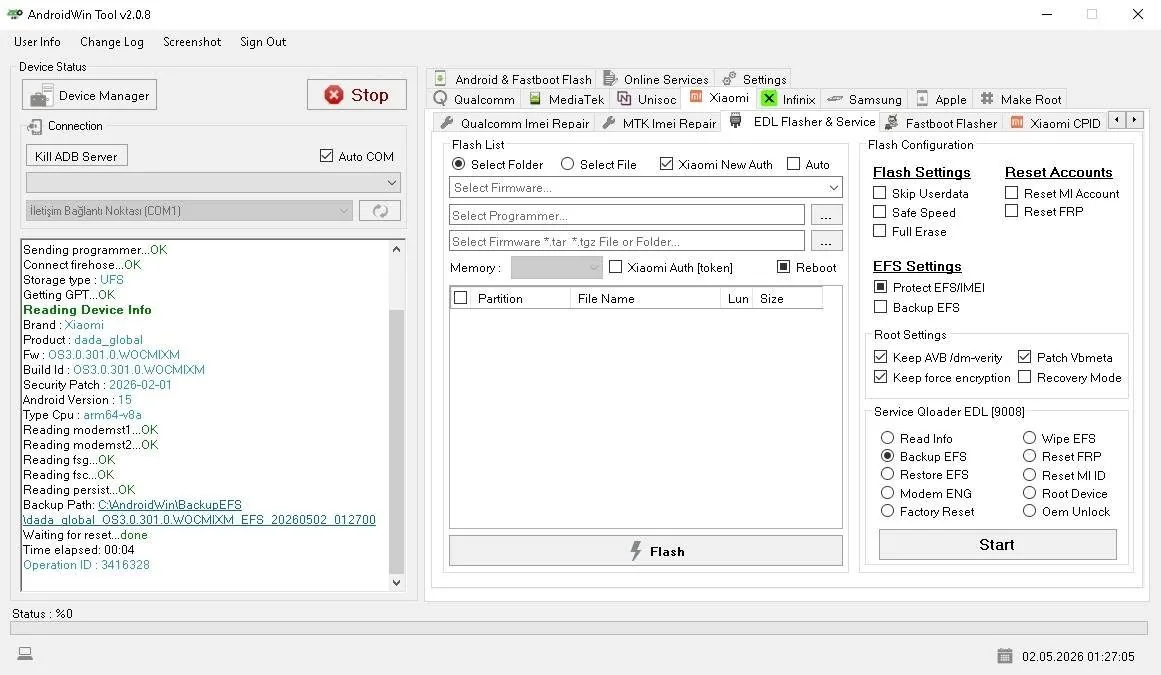
When the bootloader is locked and MiFlash Fastboot is blocked, AndroidWin Tool's EDL Flasher & Service handles authorized HyperOS flashing with Protect EFS enabled.
Why must you NEVER accidentally select "clean all and lock"?
MiFlash defaults to "clean all and lock" (flash_all_lock.bat) on many installations — which immediately relocks the bootloader right after flashing. If you flash a Global or EEA ROM onto a China-region Xiaomi motherboard and relock the bootloader, the phone permanently refuses to boot into Android, trapping you in Recovery with "This MIUI/HyperOS version can't be installed on this device".
Bench Survival Rule: Only select clean all and lock if you are 100% certain the ROM region matches the phone's original factory motherboard region (China ROM on China hardware, Global ROM on Global hardware). In every other scenario, ALWAYS switch the bottom-right toggle to clean all before clicking Flash.
How do you fix common MiFlash errors and locked-bootloader bricks?
Most MiFlash errors trace directly to three clear causes: a cosmetic checkpoint warning after a successful clean-all flash, a folder path containing spaces or pointing inside the images subfolder, or a locked bootloader that requires switching from Fastboot to authorized EDL 9008 tools such as AndroidWinTool, DFT Pro, or UnlockTool.
- "error: Not catch checkpoint ($fastboot -s ... lock)": This scary-looking message actually appears AFTER a successful clean all flash simply because MiFlash's checkpoint scanner looked for a relock command that wasn't run. If the phone is already rebooting normally into Android, your flash succeeded completely!
- "Cannot find flash_all.bat" / "Length cannot be less than zero": Your ROM folder path is too deep, contains spaces/non-ASCII characters, or you pointed to the inner images folder instead of its parent. Move the folder to C:\ROM\ and retry.
- "Erase is not allowed in lock state" / "Flashing is not allowed in Lock State": Your bootloader is locked. Free Fastboot flashing cannot proceed — enter EDL 9008 (Xiaomi EDL Auth guide) using rented AndroidWinTool ($1.03), DFT Pro ($1.19), UnlockTool ($0.30), or Hydra Tool ($1.21).
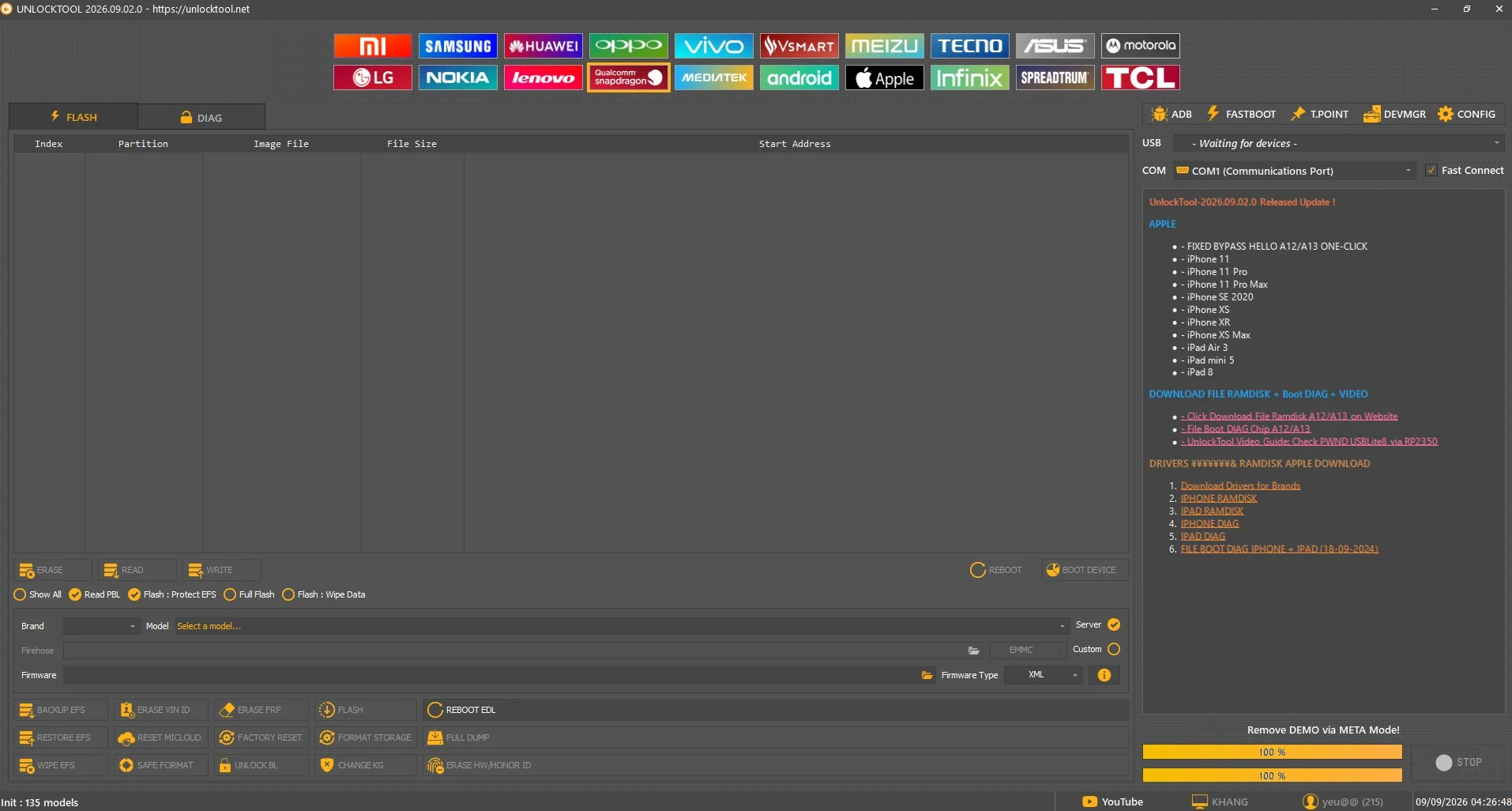
UnlockTool Qualcomm Flash module — ideal for locked-bootloader unbricking with Flash: Protect EFS checked by default.
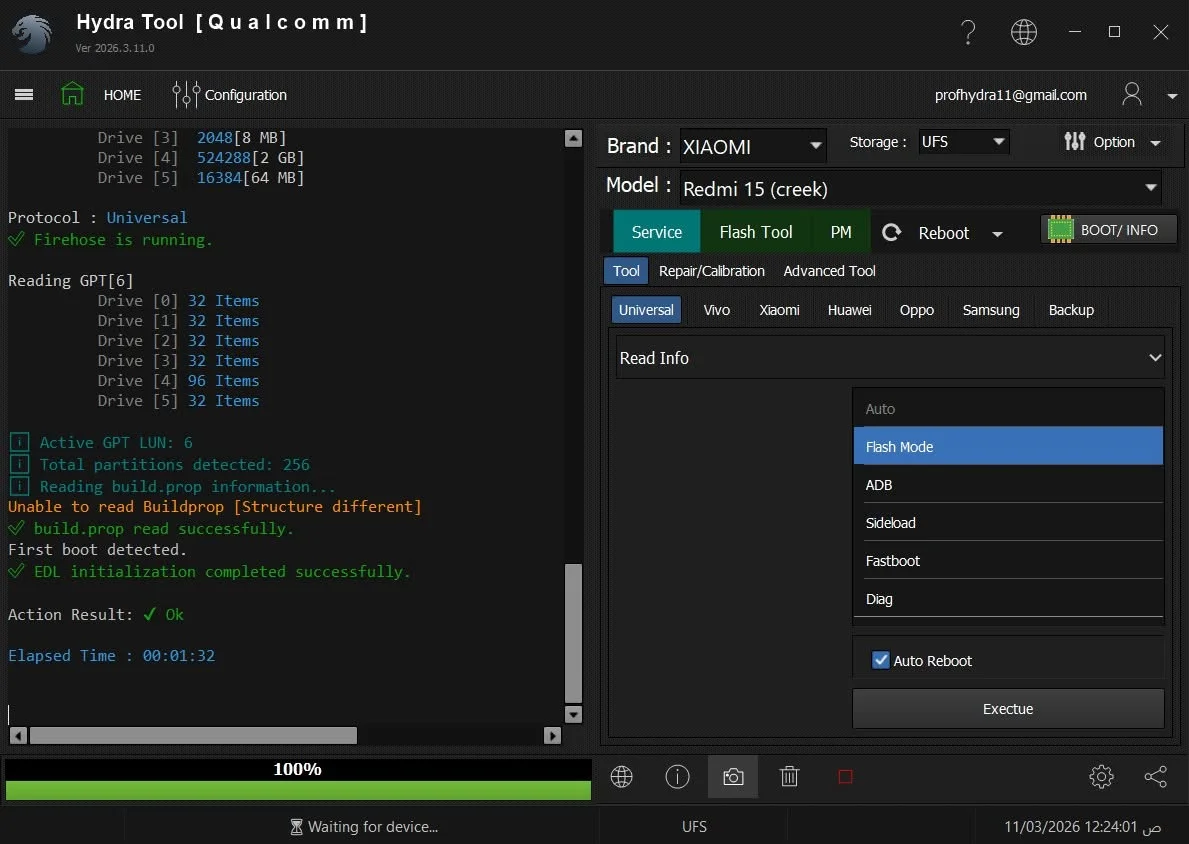
Hydra Tool Qualcomm Flash Mode confirming clean GPT and UFS LUN access when rescuing hard-bricked Snapdragon Xiaomi boards.
| Package | Current price | Original price | Save |
|---|---|---|---|
| 2 days | $1.19 | $2.12 | 44% |
| 3 days | $2.44 | $2.49 | 2% |
| 4 days | $2.90 | $3.00 | 3% |
Updated November 2026 — listed price before coupon
Need EDL vs Fastboot Clarity? If your Xiaomi phone will not enter Fastboot at all (black screen only), jump to our EDL Mode vs Download Mode & Fastboot comparison and 49-board Xiaomi Test Point gallery before opening the rear housing.
Frequently Asked Questions
Can I flash a Xiaomi phone with MiFlash if the bootloader is locked?
No over Fastboot Mode — MiFlash will return "Flashing is not allowed in Lock State". For locked-bootloader or hard-bricked Snapdragon Xiaomi devices, you must use EDL 9008 with an authorized tool such as AndroidWinTool, AMT, DFT Pro, or UnlockTool.
What is the difference between a Fastboot ROM (.tgz) and a Recovery ROM (.zip)?
A Fastboot ROM (.tgz) contains raw partition images and flash_all scripts specifically for PC flashing with MiFlash Tool. A Recovery ROM (.zip) is only for on-device Updater or Recovery Mode and cannot be loaded into MiFlash.
Why did MiFlash say "error: Not catch checkpoint" even though my phone booted fine?
That is a well-known cosmetic bug in MiFlash when flashing with "clean all" instead of "clean all and lock". If the flash progress completed and the phone boots normally into HyperOS or MIUI, the flash was 100% successful.
What happens if I relock the bootloader after flashing a Global ROM on a Chinese Xiaomi?
Relocking the bootloader with a cross-region ROM bricks the boot sequence into Recovery with "This MIUI/HyperOS version can't be installed on this device". Fixing it requires flashing the original China ROM via authorized EDL 9008.
How long does a normal MiFlash Fastboot ROM flash take?
Transferring a 5–8 GB HyperOS Fastboot ROM over USB 2.0/3.0 normally takes 4 to 8 minutes, followed by 3 to 6 minutes for the first Android boot.
Which tool should I rent on GSM24h if MiFlash fails with EDL Auth required?
Rent AndroidWinTool (/rent-androidwintool) from $1.03, DFT Pro (/rent-dft-pro) from $1.19, or UnlockTool (/rent-unlocktool) from $0.30 for automated authorized EDL flashing and EFS protection.

Written by: Thanh Tài
6 years of GSM & IT background; specializes in mobile and laptop software, firmware flashing, iCloud, Xiaomi, Samsung, and OPPO unlocking. Facebook · Profile & articles · About us

No comments yet. Be the first to share your thoughts!