
Understanding EDL Mode vs Download Mode saves mobile repair technicians from unnecessary disassembly, bricked partitions, and wasted troubleshooting hours. Although both are low-level Android servicing interfaces used to flash firmware and recover non-booting phones, they operate at completely different layers of the boot chain: Samsung Download Mode (Odin) runs inside the verified bootloader, whereas Qualcomm EDL 9008 executes directly inside immutable SoC bootrom hardware. Choosing the right mode — alongside tools like UnlockTool ($0.30), DFT Pro ($1.19), or Samsung Tool CellTool ($2.15) — keeps every authorized owner repair fast, clean, and reversible.
Table of Contents
- What is the core difference between EDL Mode and Download Mode?
- Side-by-Side Comparison: EDL 9008 vs Download Mode vs Fastboot vs BROM & EUB
- When should you use Samsung Download Mode (Odin) first?
- When is Qualcomm EDL 9008 Mode strictly required?
- How do Windows drivers and GSM tools detect each flashing mode?
- Frequently Asked Questions
What is the core difference between EDL Mode and Download Mode?
Download Mode (Odin Mode) is a Samsung bootloader interface running after the primary bootloader initializes, enforcing signed firmware and binary (BIT) checks over a standard USB cable. EDL Mode (Qualcomm HS-USB QDLoader 9008) is a silicon-level Qualcomm Primary Boot Loader (PBL) interface that works even when Android and the bootloader are completely erased.
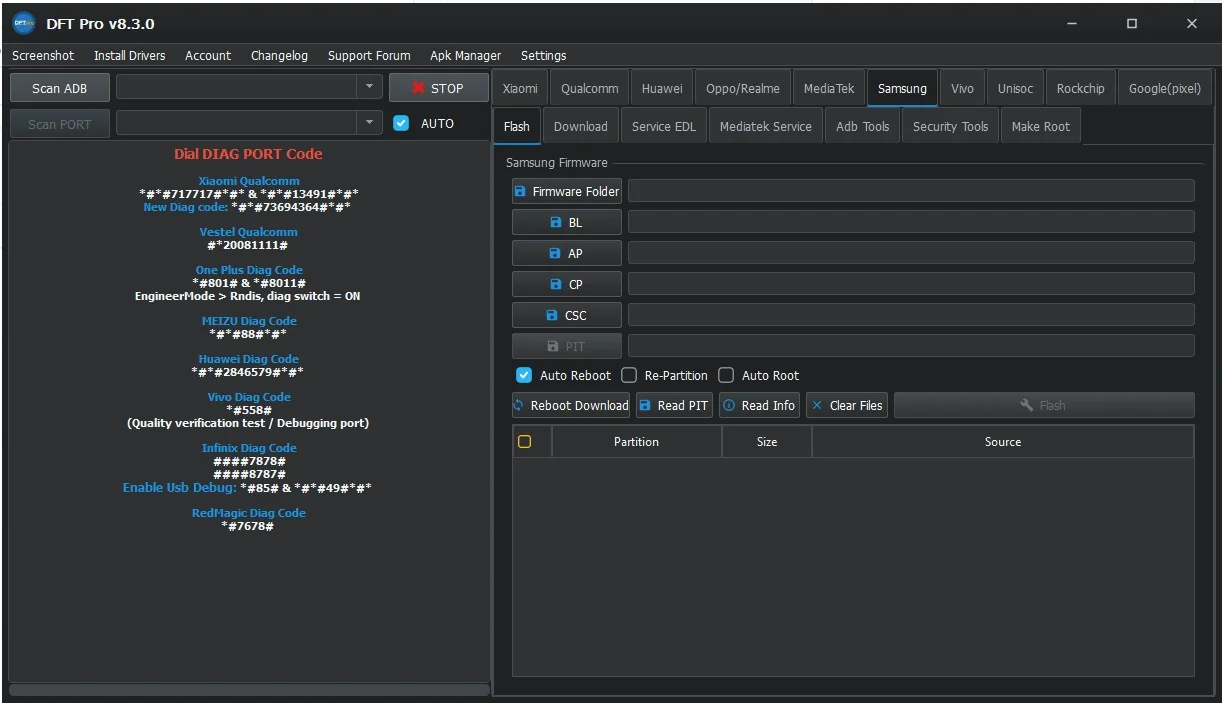
Download Mode (Odin) flashing interface inside DFT Pro v8.3.0: structured BL, AP, CP, CSC, and PIT slots verify Samsung signatures automatically.
In the Android bootloader architecture, boot execution flows strictly in order: immutable SoC BootROM (PBL) → Secondary Bootloader (SBL / XBL / ABL — where Odin Download Mode and Fastboot live) → Android Kernel → User Space. Whenever the middle bootloader stage survives, Download Mode or Fastboot is the safest choice. Only when that stage is corrupted, locked out, or incapable of executing an authorized service task do technicians drop down to SoC BootROM via EDL 9008, MediaTek BROM, or Exynos EUB.
Side-by-Side Comparison: EDL 9008 vs Download Mode vs Fastboot vs BROM & EUB
Modern repair counters rarely deal with just two modes. Use this verified reference matrix to pick the exact interface matching the phone on your desk:
| Criteria | Download Mode (Odin) | Qualcomm EDL 9008 | Fastboot Mode | MTK BROM / Exynos EUB |
|---|---|---|---|---|
| Supported Brands / SoCs | Samsung Galaxy (all SoCs) | Qualcomm Snapdragon (Xiaomi, Samsung, OPPO, Vivo, OnePlus) | Xiaomi, Pixel, Motorola, OnePlus, generic Android | MediaTek (BROM) & Samsung Exynos (EUB) |
| Boot Chain Layer | Bootloader (visual teal screen) | SoC Primary BootROM (black screen) | Bootloader (visual screen) | SoC BootROM (black screen) |
| Entry Method | Vol Up + Vol Down + USB cable | Test Point, ADB reboot edl, or authorized loader | Vol Down + Power | Vol buttons (older) or Motherboard Test Point |
| Hardware Disassembly? | No | Often Yes (motherboard test point) | No | Often Yes on newer security patches |
| Windows Device Manager | SAMSUNG Mobile USB Modem / Composite | Qualcomm HS-USB QDLoader 9008 | Android Bootloader Interface | MediaTek USB Port / Exynos USB Device |
| Brick Risk If Misused | Low (blocks mismatched BIT/signatures) | High (raw GPT block write access) | Low–Medium (requires unlocked BL for most writes) | High (raw partition & preloader/bootloader access) |
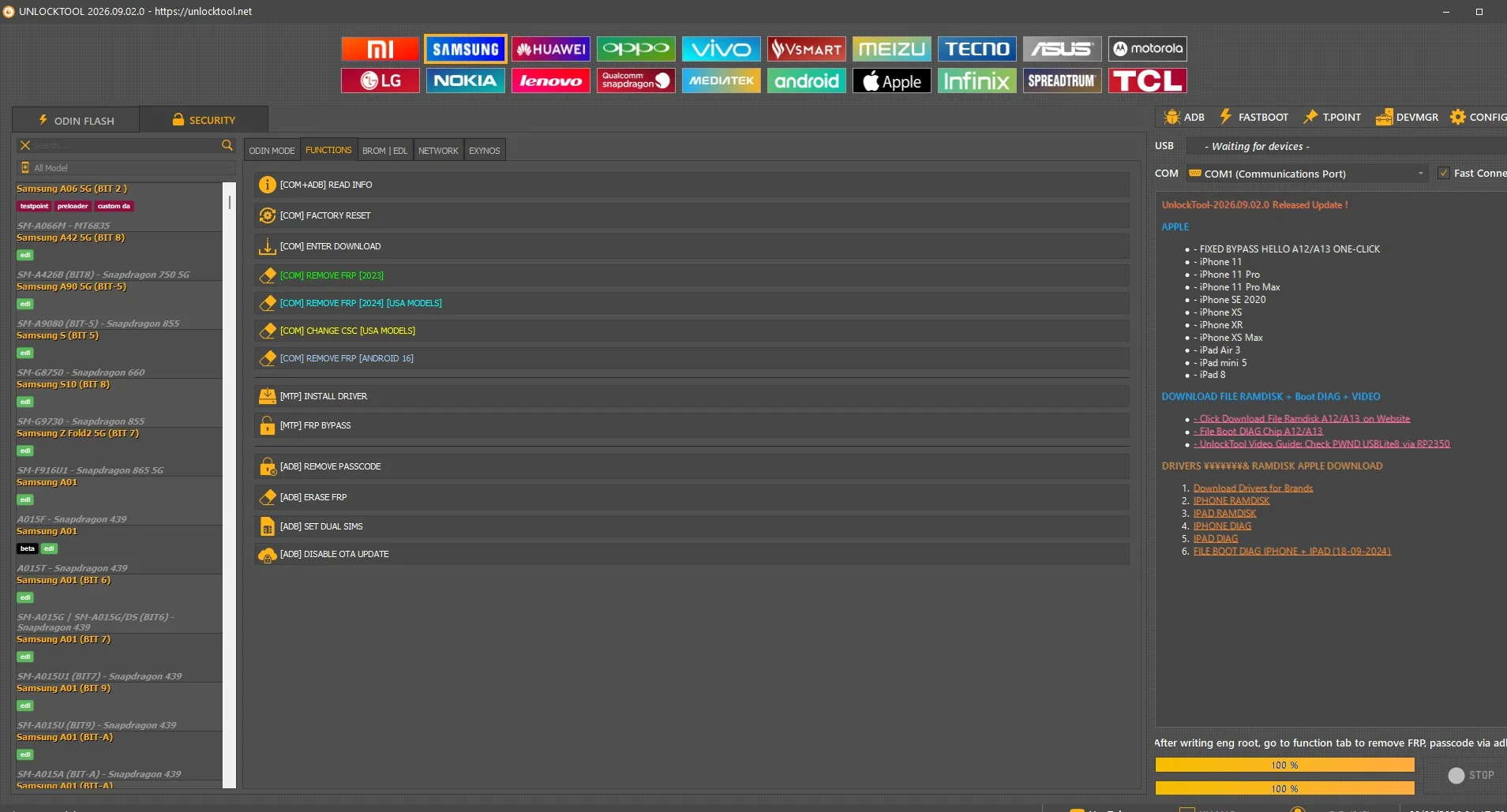
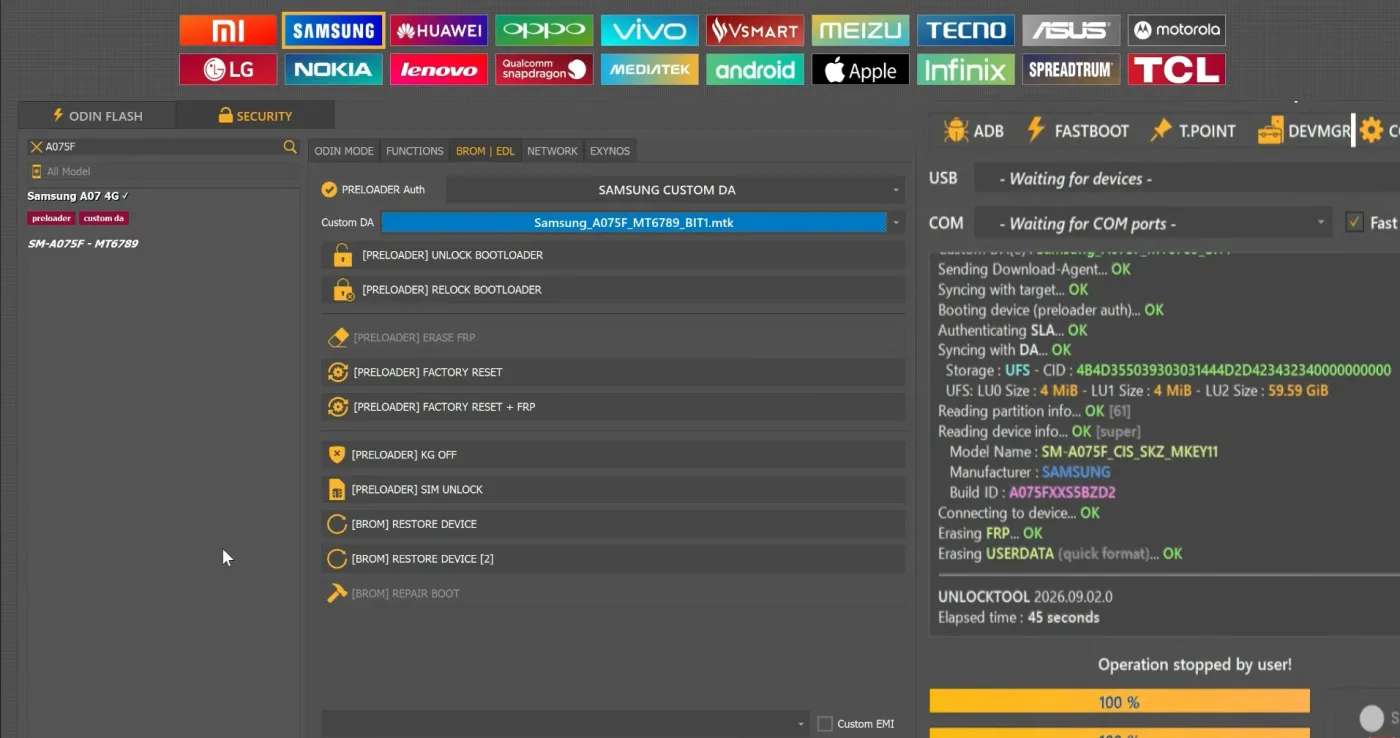
UnlockTool's Samsung workspace exposes ODIN MODE, BROM, EDL, and EXYNOS modules side by side so technicians match the safest available layer.
When should you use Samsung Download Mode (Odin) first?
Always start with Download Mode whenever a Samsung Galaxy powers on and displays the teal Warning / Downloading screen. Because Odin validates cryptographic signatures and binary revisions automatically, it handles 4-file stock ROM flashes, software bootloops, OTA recovery, and CSC changes safely without opening the back cover.
- Stock firmware upgrades & bootloop fixes: Flashing official 4-file BL + AP + CP + CSC (or HOME_CSC to preserve user data) repairs corrupted Android system partitions cleanly.
- Zero hardware risk: No heat gun, no adhesive removal, no battery flex disconnect, and no risk of losing water-resistance seals on flagship Galaxy S or Z models.
- Clear error feedback: If you accidentally load the wrong model or lower binary (SW REV CHECK FAIL), Download Mode rejects the package harmlessly instead of hard-bricking the UFS storage.
Bench Habit — Check Binary (BIT) On the Download Screen First: On Samsung's Download Mode text overlay, look for the RP SWREV line (for example, B:5 K:5 S:5). That digit is your current binary revision — you can flash equal or higher binary stock firmware in Odin, never lower. If Download Mode shows KG State Prenormal or Locked, check authorized servicing options in our KG Killer & Knox Guard guide.
When is Qualcomm EDL 9008 Mode strictly required?
Qualcomm EDL 9008 Mode is strictly required when a Snapdragon smartphone has a completely dead/black screen with corrupted bootloader partitions, cannot enter Download Mode or Fastboot, or needs authorized Firehose partition servicing (such as raw EFS/modemst backup or locked-bootloader unbricking on Xiaomi and Samsung Qualcomm boards).
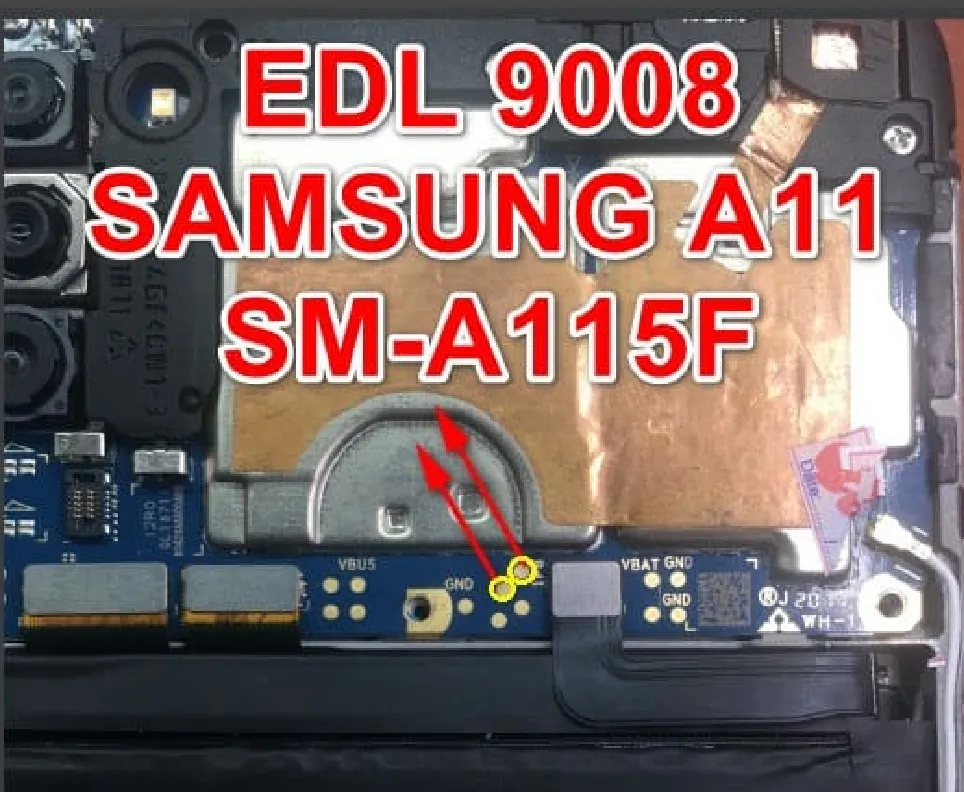
When a Snapdragon Galaxy (such as A11 SM-A115F) refuses Download Mode, shorting its EDL 9008 pads restores direct BootROM access.
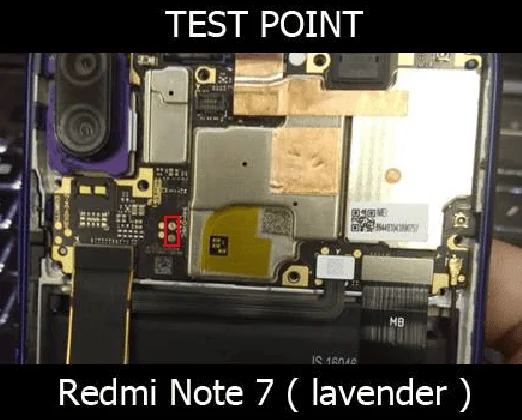
On Snapdragon Xiaomi phones (such as Redmi Note 7 lavender), EDL 9008 recovers hard-bricked boards even with a locked Fastboot bootloader.
Need exact motherboard pad diagrams? Jump straight to our visually verified Samsung Test Point EDL/BROM/EUB guide or Xiaomi, Redmi & POCO EDL 9008 Test Point guide — and always follow our Samsung EFS & NV backup guide before writing any low-level partition.
How do Windows drivers and GSM tools detect each flashing mode?
Each flashing mode enumerates a distinct USB VID/PID in Windows Device Manager, so pre-installing both the official Samsung Android USB Driver and Qualcomm HS-USB QDLoader 9008 driver (plus Google Platform-Tools for ADB/Fastboot) prevents port-detection failures midway through a paid rental shift.
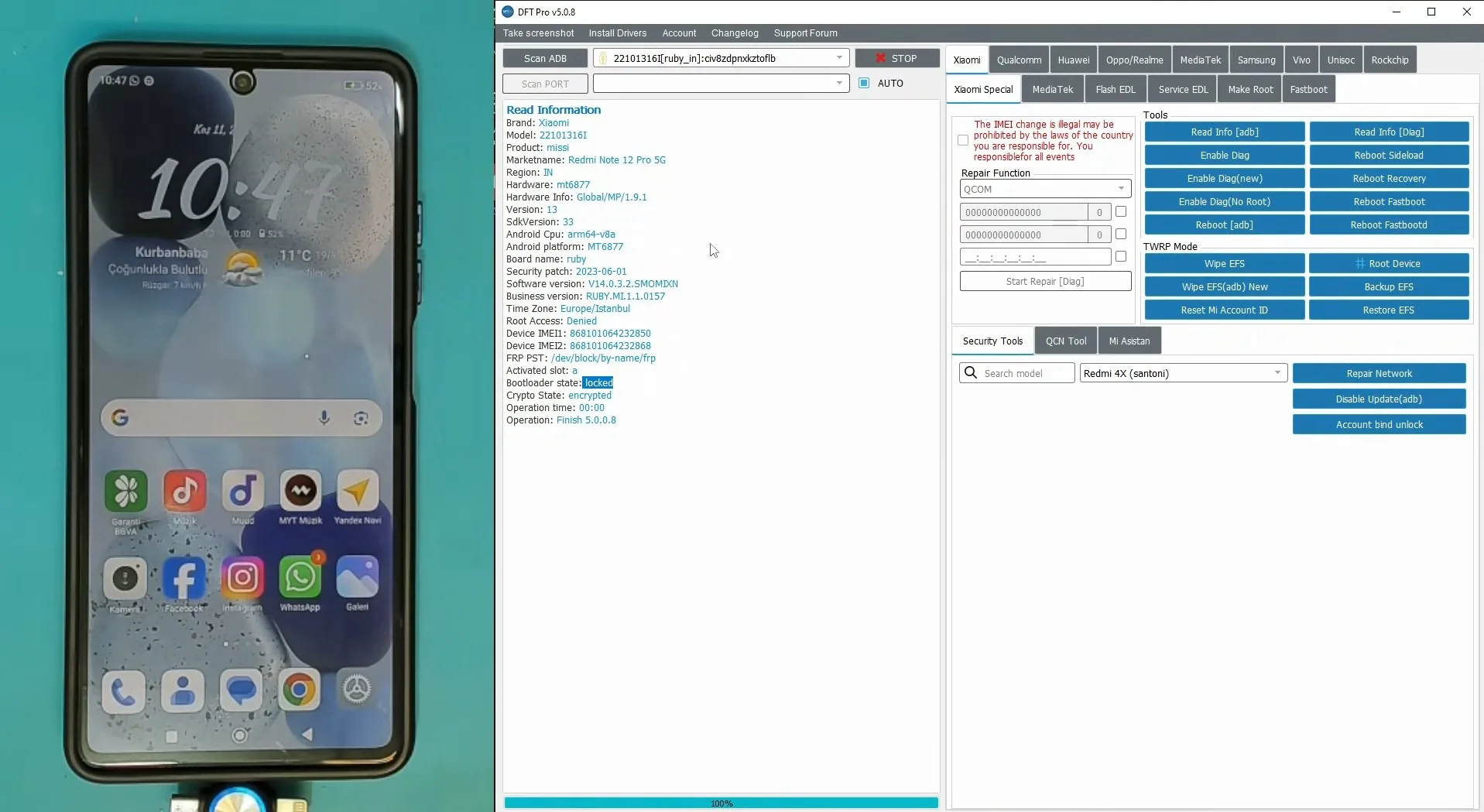
- All-in-One Multi-Mode Bench: Rent UnlockTool ($0.30) or Rent DFT Pro ($1.19) to switch seamlessly between Samsung Odin Download Mode, Qualcomm EDL 9008, MediaTek BROM, and Fastboot inside one desktop window.
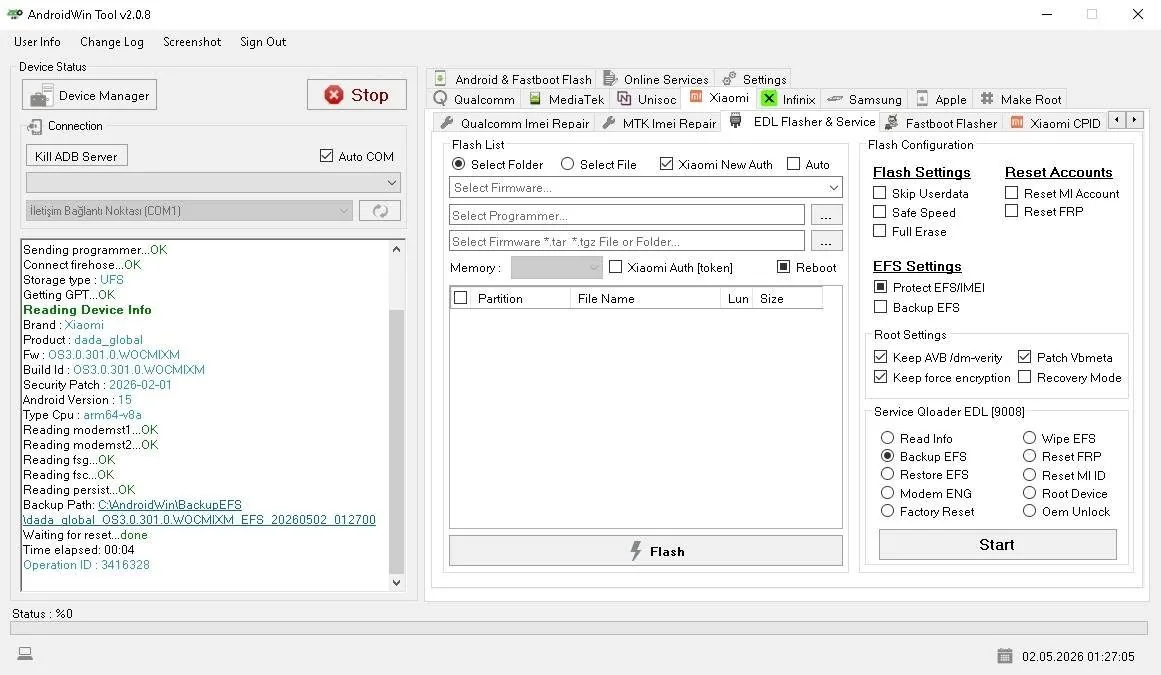
- Xiaomi HyperOS EDL Specialists: Rent AndroidWinTool ($1.03) or Rent Android Multi Tool (AMT) ($0.39) when newer Snapdragon Xiaomi models demand authorized Firehose loaders.
- Samsung Qualcomm EDL & Exynos EUB Specialists: Rent Samsung Tool CellTool ($2.15) for Snapdragon EDL, or Rent Chimera Tool ($25.96) for Exynos EUB and deep Download Mode diagnostics.
| Package | Current price | Original price | Save |
|---|---|---|---|
| 2 days | $1.19 | $2.12 | 44% |
| 3 days | $2.44 | $2.49 | 2% |
| 4 days | $2.90 | $3.00 | 3% |
Updated November 2026 — listed price before coupon
Troubleshooting Tip — Stuck in 9008 Without Shorting Test Points: If you plug in a completely dead Snapdragon phone and Windows immediately shows Qualcomm HS-USB QDLoader 9008 without touching any test point, the primary bootloader (XBL/ABL) is corrupted or the eMMC/UFS storage chip has failed. Test by sending a verified Firehose loader first; if Sahara succeeds but storage read/write returns I/O errors, suspect hardware UFS failure rather than software.
Frequently Asked Questions
Which mode is safer for standard Samsung firmware flashing: EDL Mode or Download Mode?
Download Mode (Odin) is much safer for normal Samsung firmware flashing. It requires no disassembly and automatically rejects mismatched models or illegal binary downgrades, whereas EDL Mode writes raw storage blocks directly.
Can a MediaTek or Exynos Samsung phone enter Qualcomm EDL 9008 Mode?
No. EDL 9008 is exclusive to Qualcomm Snapdragon chips. MediaTek devices use BROM/PreLoader Mode, Unisoc devices use SPRD Diag Mode, and Samsung Exynos devices use Exynos USB Boot (EUB) Mode.
Why is the phone screen completely black in EDL 9008 Mode?
Because Qualcomm's Primary Boot Loader executes before display drivers or the Android bootloader initialize, the screen stays completely black in EDL 9008. You confirm entry strictly through Windows Device Manager showing Qualcomm HS-USB QDLoader 9008.
How do I exit EDL Mode or Download Mode if I change my mind before flashing?
To exit Download Mode safely without flashing, hold Volume Down + Power together for 7–10 seconds until the phone reboots. To exit EDL 9008, unplug the USB cable, reconnect the battery if unplugged, and hold Power for 10–15 seconds.
Does Fastboot Mode replace EDL 9008 on Xiaomi and POCO smartphones?
Only when the bootloader is already unlocked and intact. If the Xiaomi bootloader is locked or the phone is hard-bricked with no Fastboot screen, Qualcomm EDL 9008 with an authorized Firehose loader is required.
Which USB drivers do I need for both EDL Mode and Download Mode on Windows?
Install the official Samsung Android USB Driver for Download Mode (Odin), the Qualcomm HS-USB QDLoader 9008 driver for EDL Mode, and Google Android SDK Platform-Tools for ADB and Fastboot commands — see our full setup guide at /blog/gsm-usb-drivers-samsung-qualcomm-mtk-adb-guide.

Written by: Trần Kế Khang
5 years of in-depth mobile & laptop hardware repair experience; founder of thuetaikhoan.com.vn, unlocktool.us, dienthoailaptop.vn, and gsm24h.com. Facebook · Profile & articles · About us
No comments yet. Be the first to share your thoughts!