
Samsung Tool CellTool (branded inside the desktop client as CellTool SamS Modules) is a dedicated Windows service utility built for Galaxy FRP removal, Qualcomm EDL flashing, CSC/SN edits, and Knox Guard bypass across modern Samsung Android devices. Instead of purchasing a full long-term license up front, technicians can rent access from $2.15 with automated 24/7 credential delivery right on GSM24h.com. Every bypass workflow in this guide applies strictly to devices serviced with explicit owner authorization.
Table of Contents
- What is Samsung Tool CellTool?
- How do KG Removal Method 3 and Credits work?
- Why does CellTool show an HTML error and how do you fix it?
- How much does renting Samsung Tool CellTool cost?
- How do you log in and reset HWID on the portal?
- Common Samsung Tool CellTool errors and fixes
- Frequently Asked Questions
What is Samsung Tool CellTool?
Samsung Tool CellTool is a Windows-native servicing application focused exclusively on Samsung smartphones and tablets across MTP, ADB, Download (Odin), Qualcomm EDL 9008, and Exynos modes. Technicians rely on its one-click Android 16 MTP FRP routines, Knox Guard bypass methods, CSC switching, and loader-assisted Qualcomm servicing without keeping multiple legacy boxes open.
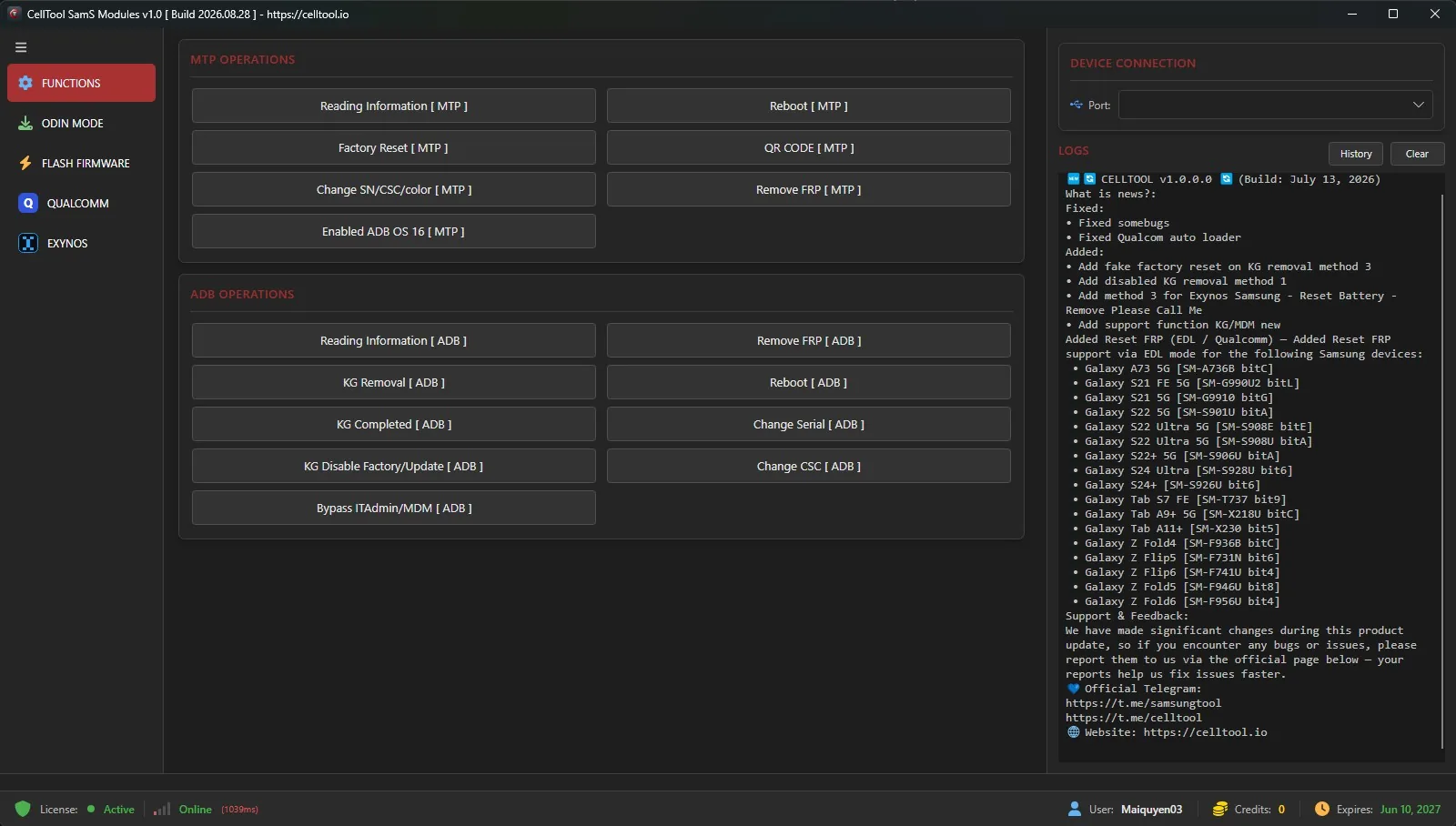
CellTool SamS Modules v1.0 workspace showing MTP Operations, ADB Operations, and supported Galaxy Qualcomm models.
MTP and ADB Operations Tab
The primary FUNCTIONS tab separates device servicing into two direct workflows so you can match the cable state shown on the bench:
- MTP Operations: Reading Information [MTP], Factory Reset [MTP], Change SN/CSC/color [MTP], Enabled ADB OS 16 [MTP], QR CODE [MTP], and direct Remove FRP [MTP].
- ADB Operations: Reading Information [ADB], Remove FRP [ADB], KG Removal [ADB], KG Completed [ADB], KG Disable Factory/Update [ADB], Change Serial [ADB], Change CSC [ADB], and Bypass ITAdmin/MDM [ADB].
Before starting any MTP or ADB procedure, install the latest official Samsung Android USB Driver alongside Google Android SDK Platform-Tools so Windows enumerates the modem and ADB interfaces without conflicts.
Qualcomm EDL, Odin & Exynos Modules
When a Galaxy device cannot reach ADB or MTP — such as an encrypted lock screen or high binary security patch — CellTool provides dedicated sidebar modules for ODIN MODE, FLASH FIRMWARE, QUALCOMM, and EXYNOS.
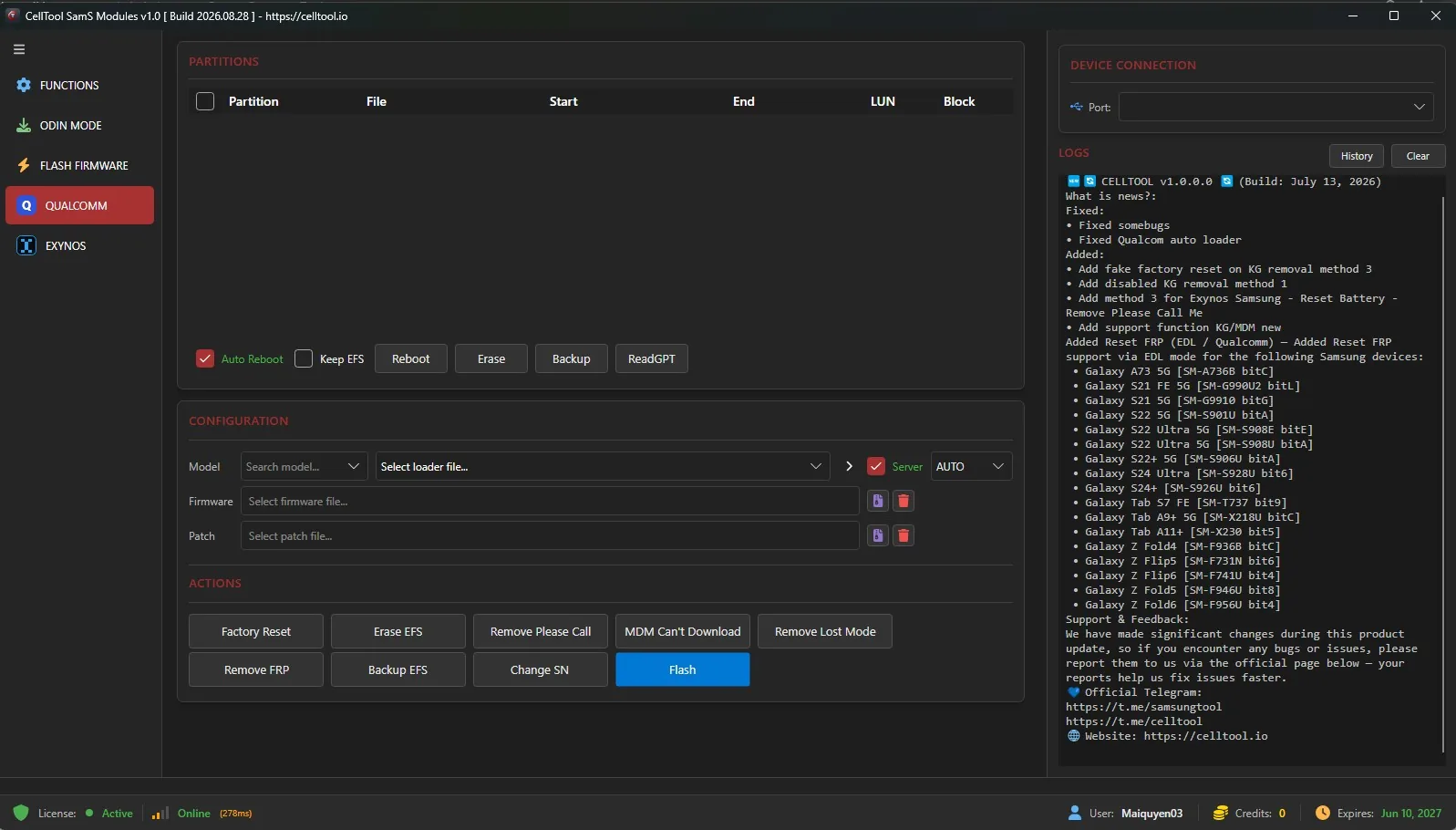
The Qualcomm EDL tab inside CellTool SamS Modules with Server AUTO loader selection and one-click service actions.
Inside the Qualcomm tab shown above, the v1.0 changelog confirms loader-based FRP reset and EFS servicing for popular Snapdragon devices including Galaxy A73 5G (SM-A736B), Galaxy S21 FE / S22 Ultra / S24 Ultra, Tab A9+ 5G, and Galaxy Z Fold/Flip 4 through 6. For Exynos-only bypass comparisons, see our Sigma Plus Exynos EUB guide or EFT Pro Dongle Samsung guide.
How do KG Removal Method 3 and Credits work?
Standard Samsung Tool CellTool hourly accounts cover regular FRP, MTP, ADB, and firmware routines without server credits. However, advanced operations such as KG Removal Method 3 and Quick HWID Change deduct server credits directly from the logged-in account, making it essential to pick the matching rental package before starting an MDM or Knox job.
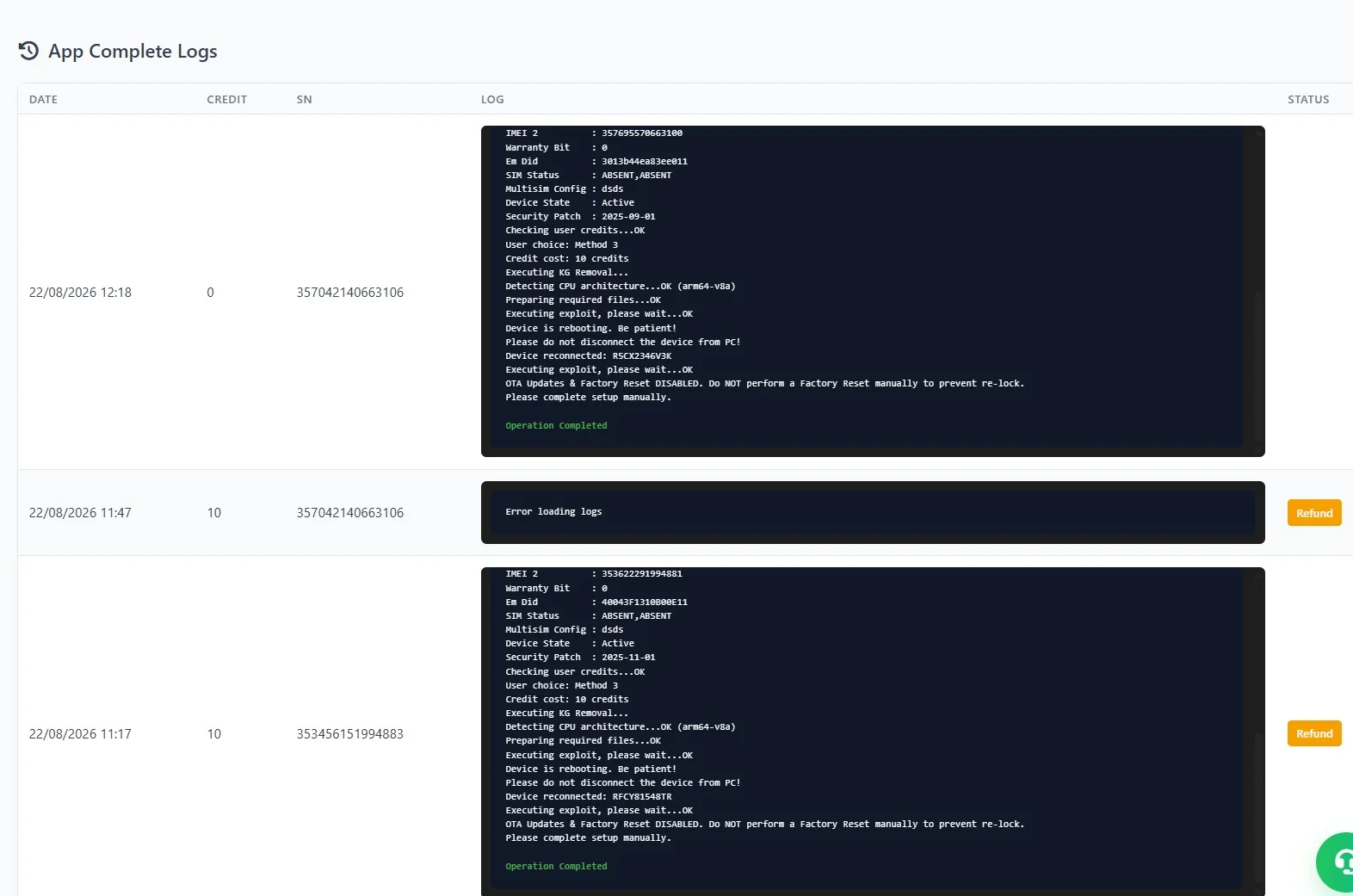
Official user.celltool.io App Complete Logs showing successful KG Removal Method 3 execution at a 10-credit server cost.
Bench Log Verification (Real Complete Logs): Checking the official user.celltool.io Complete Logs panel confirms two crucial details about Method 3 on September–November 2025 security patches (arm64-v8a, Warranty Bit 0): first, the server bills 10 credits per completed KG Removal job; second, once finished, the routine explicitly disables OTA updates and manual Factory Reset to prevent re-lock. Never run manual Factory Reset afterward unless restoring original ownership status.
Because server-credit jobs cost extra, GSM24h separates standard time rentals from credit-bundled options on the Samsung Tool rental page. If you only need chipset FRP removal without server credits, check whether UnlockTool Samsung FRP methods or Sigma Plus already cover your exact model.
Why does CellTool show an HTML error and how do you fix it?
If Samsung Tool CellTool shows a red box full of raw HTML lines beginning with <!DOCTYPE html> instead of logging in, Cloudflare security rules are blocking your IP region from reaching the authentication API. Switching to a clean Singapore, US, or European route via VPN immediately restores the JSON API handshake so the client authenticates normally.
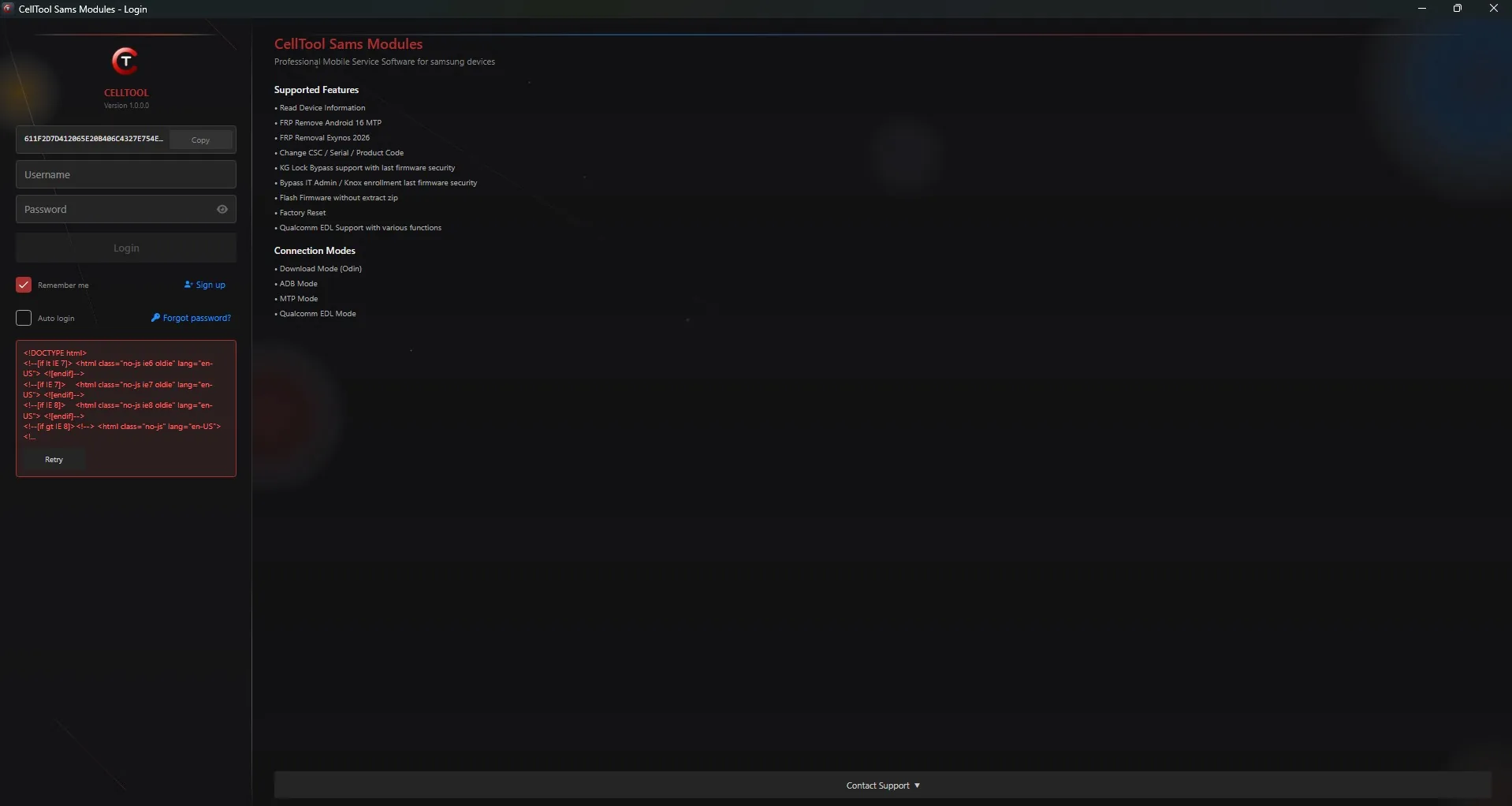
Raw HTML block response inside CellTool SamS Modules when regional IP filtering blocks the API request.
Follow these three clean steps whenever that HTML response appears:
- Close CellTool or leave it open at the login window while keeping your rented username and password handy.
- Install ProtonVPN (or another reputable desktop VPN) and connect to a nearby low-latency gateway such as Singapore or Japan.
- Click Retry or press Login again inside CellTool once the VPN indicator turns green.
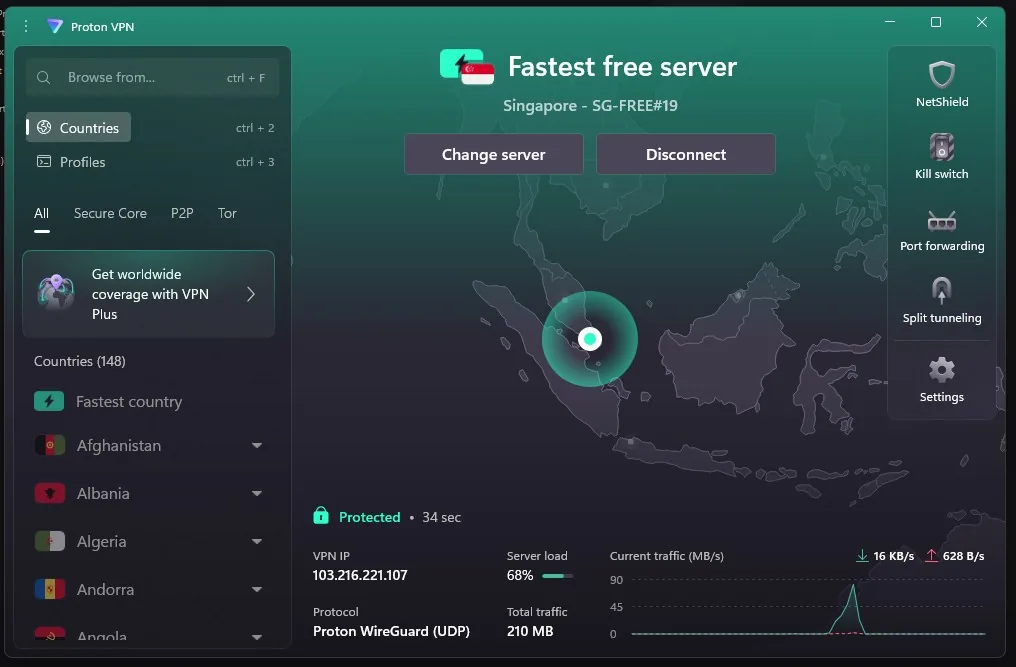
ProtonVPN connected to a Singapore server to bypass regional API filtering before clicking Retry.
Once authenticated over the VPN tunnel, CellTool loads the latest module window and shows an Important Notice reminding users to interact only with the official portal and Telegram channels shown inside the client.
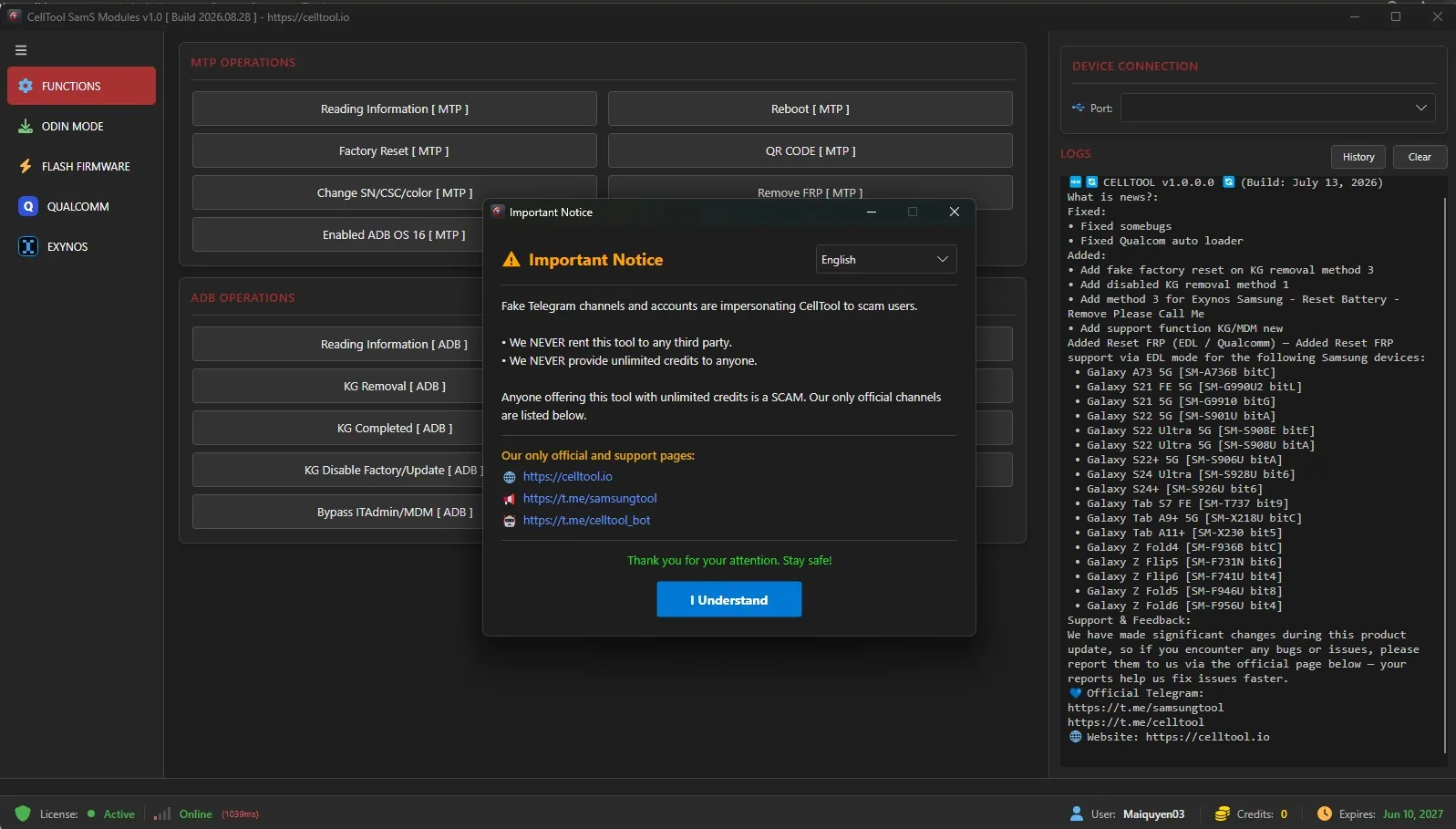
CellTool Important Notice popup displaying verified channels inside the authenticated desktop session.
Network Routing Tip: In repeated shop tests across Southeast Asian fiber connections, regional ISP routes intermittently trigger Cloudflare challenge pages on celltool.io even when the login server itself is healthy. Keeping a free Singapore WireGuard profile in ProtonVPN drops ping back under ~50ms on our test bench and eliminates the <!DOCTYPE html> response without needing any third-party modified DLLs.
How much does renting Samsung Tool CellTool cost?
Renting Samsung Tool CellTool starts from $2.15 with transparent USD packages updated automatically before coupon discounts. Automated order confirmation finishes in ~2 seconds after payment settles, delivering credentials directly on your screen with no pre-registration or mandatory wallet deposit required for standard rentals.
| Package | Current price | Original price | Save |
|---|---|---|---|
| 12 hours | $2.15 | — | — |
Updated November 2026 — listed price before coupon
For shops handling occasional Galaxy Knox Guard or Android 16 MTP jobs, renting beats locking capital into long-term activations. If your queue also includes multi-brand Qualcomm and MediaTek repairs, compare package flexibility alongside UnlockTool rental or our complete UnlockTool guide.
How do you log in and reset HWID on the portal?
Every CellTool account binds to the Windows Hardware ID (HWID) of the previous workstation that logged in. Before pressing Login on a rented account, copy your workstation's 32-character hex HWID from the client and update it inside the official portal if an unbind cooldown is not active.
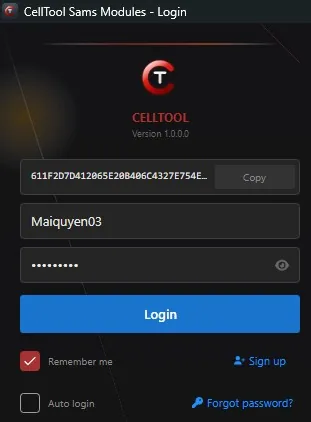
Use the Copy button next to the read-only Hardware ID box in CellTool before opening the account portal.
Watch carefully for the portal timer before switching PCs:
- Launch CellTool SamS Modules and click Copy next to the HWID string at the top-left login panel.
- Sign in to the CellTool user portal with your rented credentials, open the Hardware ID card, and click Change.
- Verify whether the free Change button is active or still in its ~12-hour cooldown timer, paste your new HWID, and save before clicking Login inside the desktop software.
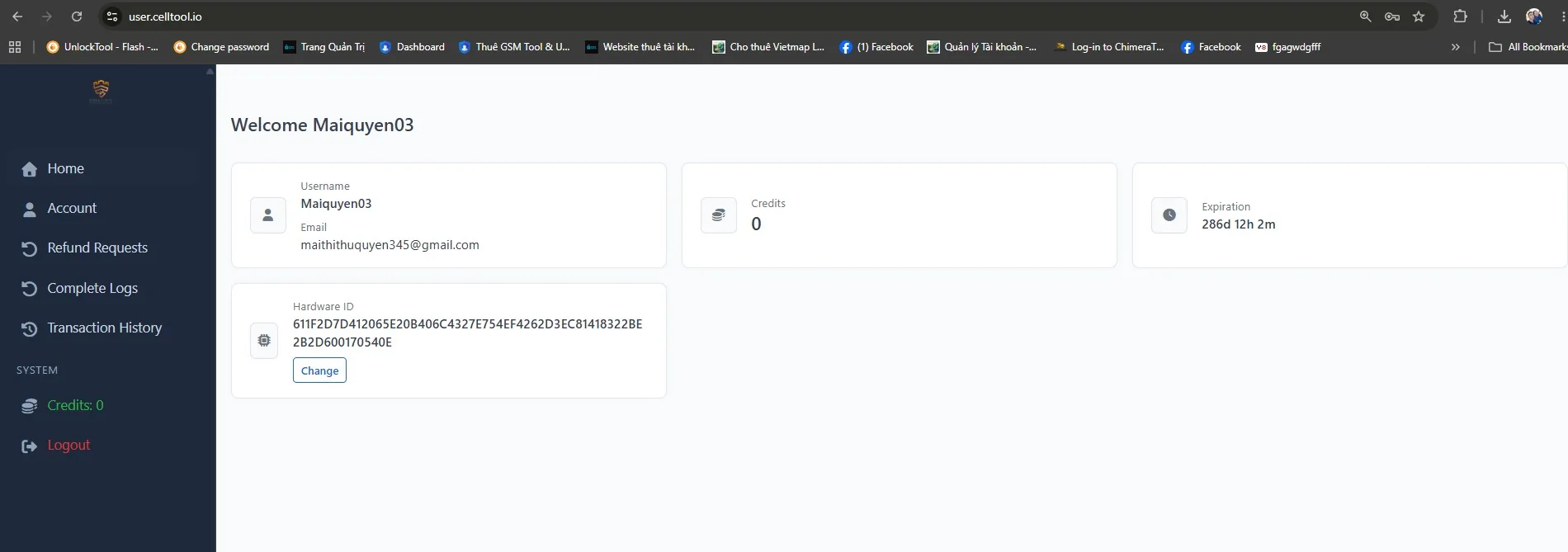
CellTool account portal home view displaying current Credits balance, account expiration, and Hardware ID Change button.
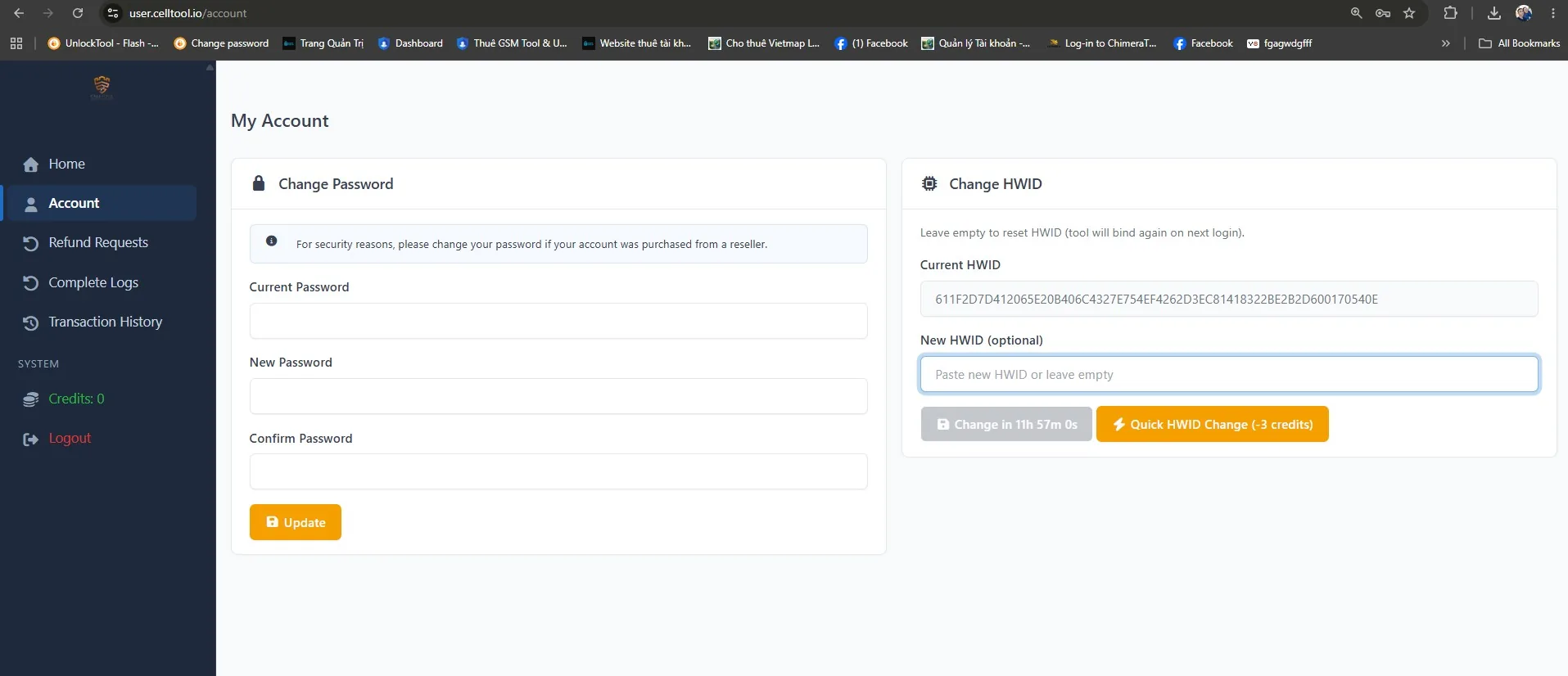
Portal Change HWID page: free changes follow a 12-hour cooldown timer, while Quick HWID Change costs 3 credits.
Notice the portal rule shown in the screenshot above: when a free HWID change is still on its 12-hour cooldown (shown as 11h 57m 0s), the portal requires either waiting out the timer or spending 3 credits for Quick HWID Change. For an effortless rental experience, wait until your workstation is ready before activating an order, or follow the login screen status shown below once HWID matches.
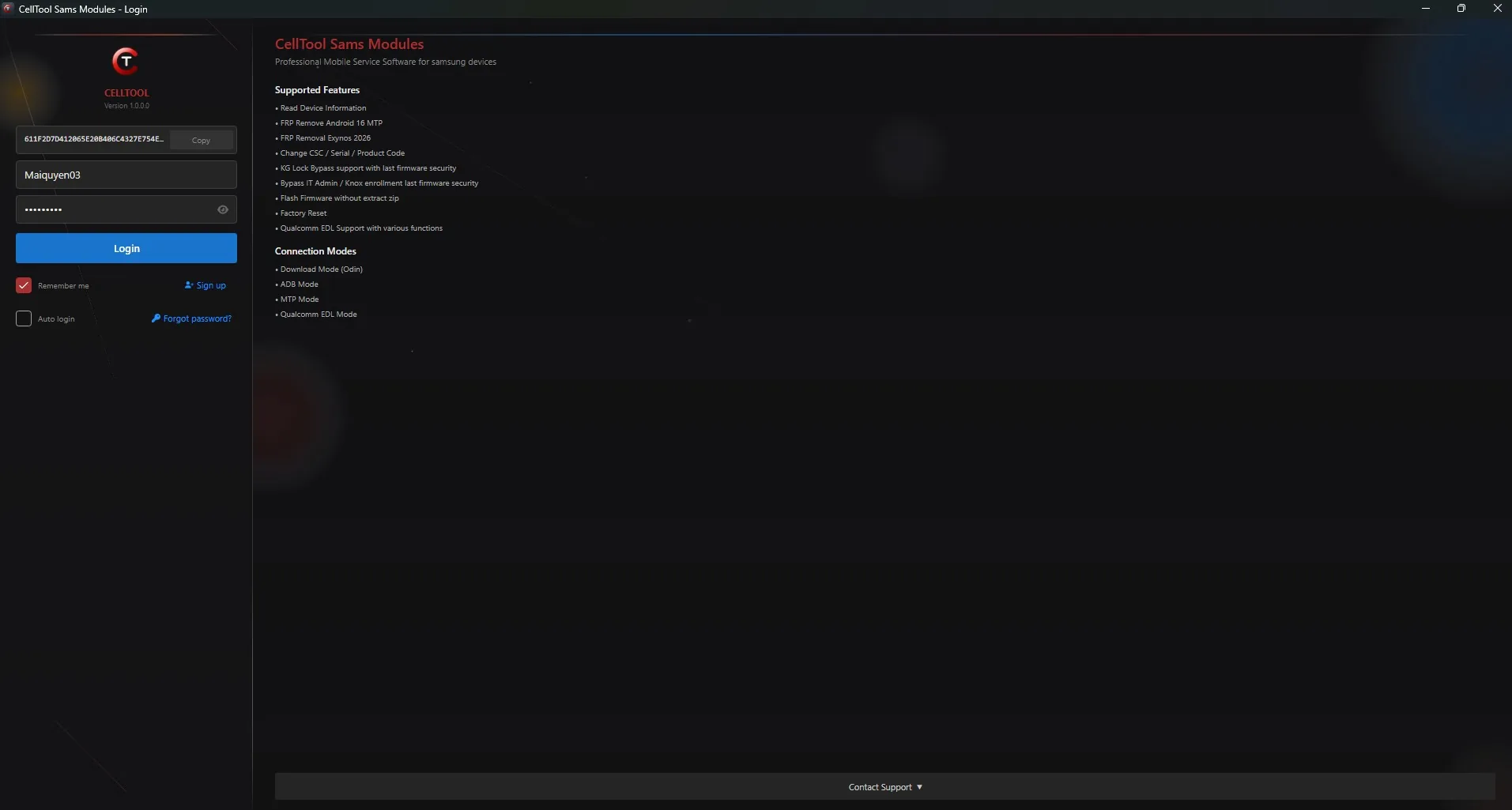
CellTool login form populated with workstation HWID and rented credentials ready for authentication.
Common Samsung Tool CellTool errors and fixes
Most failed Galaxy FRP or KG operations come down to four environmental issues rather than software defects:
- Raw HTML / Connection Blocked: Caused by Cloudflare regional IP filtering. Connect ProtonVPN to Singapore or Europe and click Retry.
- Device Not Detected in MTP or ADB: Install official Samsung USB Drivers, swap to a direct rear motherboard USB 2.0/3.0 port, and verify
adb devicesor Windows Device Manager shows the Samsung Modem/ADB entry without yellow warning badges. - HWID Mismatch or Cooldown Error: Confirm your exact copied HWID was saved on
user.celltool.iofirst. If another account on GSM24h is already clear of the 12-hour cooldown, contact support immediately — technical account faults are covered by replacement or refund policy. - "Insufficient Credits" on KG Method 3: Standard rentals carry 0 server credits. Double-check whether your job requires a 10-credit KG package before disconnecting or re-flashing firmware.
Frequently Asked Questions
Does standard Samsung Tool CellTool rental include server credits for KG Removal Method 3?
No. As verified in CellTool App Complete Logs, KG Removal Method 3 deducts 10 credits per operation. Standard time-based rentals cover credit-free MTP/ADB FRP, CSC changes, and flashing functions; choose the credit-included tier on the rental page if your Galaxy requires paid KG credits.
Why does CellTool display <!DOCTYPE html> in red when I click Login?
That HTML snippet indicates a Cloudflare security challenge blocking your current ISP IP route from calling CellTool's API. Enabling a clean VPN route such as ProtonVPN Singapore immediately restores JSON communication when you click Retry.
Can I switch computers during an active Samsung Tool CellTool rental?
CellTool enforces a 12-hour cooldown timer between free HWID resets, while an instant Quick HWID Change costs 3 credits. Prepare your primary servicing PC, copy its HWID once, and complete all planned Samsung repairs on that same machine.
Is CellTool safe for Galaxy Knox Guard or MDM bypass without tripping Warranty Bit?
As seen in completed logs, ADB/Method 3 flows target software lock flags while Warranty Bit remains 0 on supported patches, and they disable OTA updates and manual Factory Reset to prevent re-lock. Always back up critical user data first and only service owner-authorized devices.
What happens if a rented Samsung Tool account has a login or HWID lock problem?
If an assigned credential fails due to an unexpected technical lock or HWID cooldown conflict caused before your session, GSM24h replaces the account or refunds the order under our support guarantee.
What Android versions and connection modes does CellTool SamS Modules v1.0 support?
CellTool supports Download (Odin), MTP, ADB (including Enabled ADB OS 16 MTP), and Qualcomm EDL 9008 across modern Samsung Android versions, provided the proper Samsung USB drivers and authorized firmware binaries match your device binary bit.
Ready to Rent Samsung Tool CellTool Automatically?
Get instant 24/7 login delivery from $2.15 with USD & crypto checkout and verified working accounts.
Rent Samsung Tool Now →
Written by: Thanh Tài
6 years of GSM & IT background; specializes in mobile and laptop software, firmware flashing, iCloud, Xiaomi, Samsung, and OPPO unlocking. Facebook · Profile & articles · About us

No comments yet. Be the first to share your thoughts!