
HFZ Ramdisk (HFZ Activator A12/A13 Ramdisk v1.1 on macOS) is a hardware-assisted passcode servicing solution for A12 and A13 iPhones and iPads stuck on the iPhone Unavailable or Passcode screen. Unlike No-Signal Hello-screen bypasses, HFZ Ramdisk backs up and restores the device's original activation tickets (activation_record.plist and commcenter.plist) — preserving full SIM signal and displaying Owner Info. Live per-device registration on GSM24h starts at $3.94 on the HFZ Ramdisk catalog. Perform passcode recovery strictly on owner-authorized devices.
Table of Contents
- What is HFZ Ramdisk A12/A13 Passcode Bypass and how does it work?
- How do you flash USBLiter8 firmware onto the RP2350 board?
- How does the HFZ Ramdisk v1.1 passcode bypass workflow run step by step?
- How does HFZ Ramdisk compare with HFZ A12+ Hello and UnlockTool Ramdisk?
- Common HFZ Ramdisk errors and limitations
- Frequently Asked Questions
What is HFZ Ramdisk A12/A13 Passcode Bypass and how does it work?
HFZ Ramdisk A12/A13 is a macOS-only utility paired with an inline RP2350 microcontroller flashed with USBLiter8 firmware. Rather than erasing activation records blindly, it boots a custom SSH Ramdisk (localhost:2222), exports the handset's existing cellular and activation tickets, wipes the forgotten passcode cleanly, and restores those exact tickets so SIM calls and data continue working.
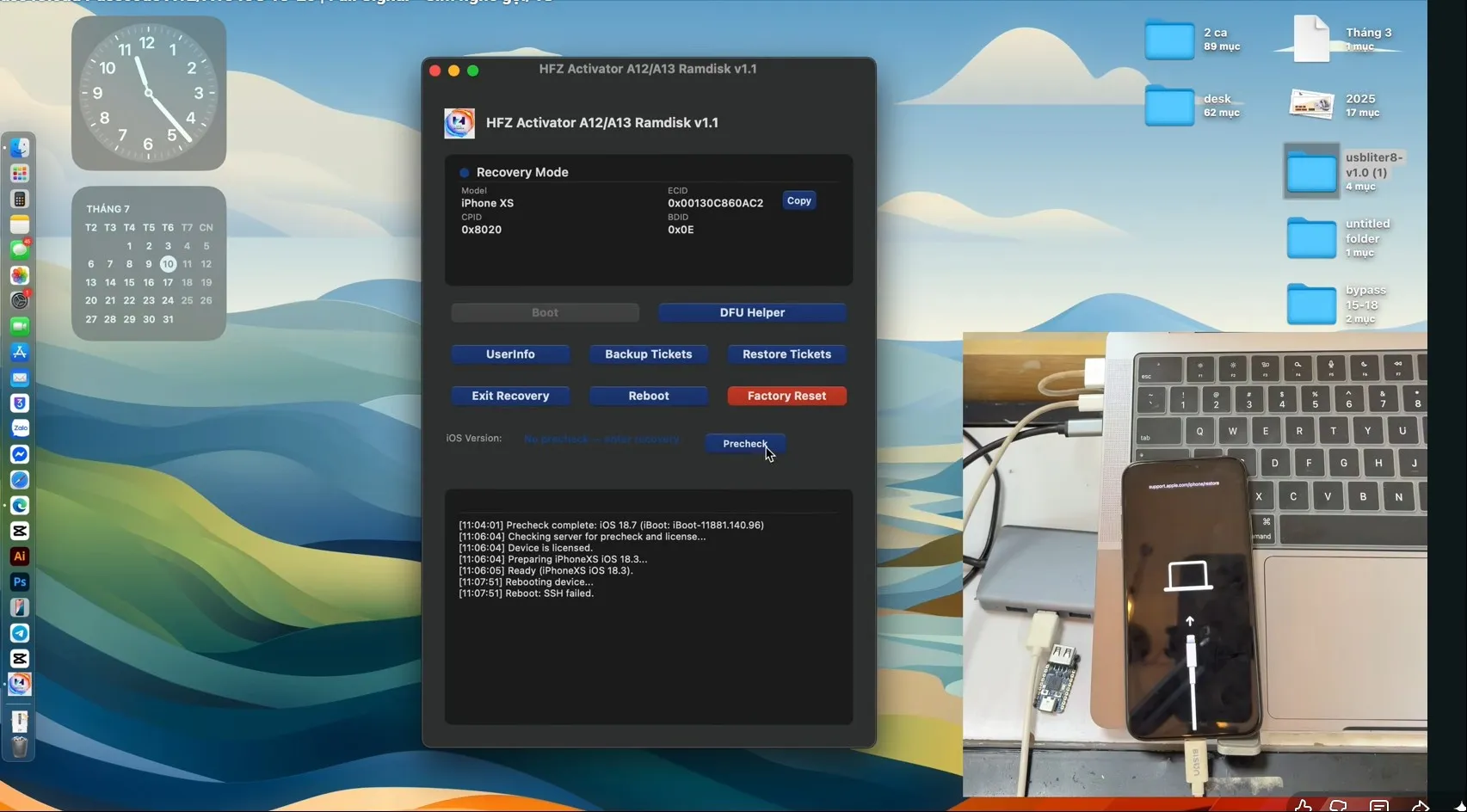
HFZ Activator A12/A13 Ramdisk v1.1 on macOS running Precheck on an iPhone XS (CPID 0x8020, BDID 0x0E) in Recovery Mode.
Supported A12/A13 iPhones, iPads & Live GSM24h USD Pricing
On GSM24h's HFZ Ramdisk service page, each A12/A13 Apple model uses its own dedicated device-specific service identifier — always select the exact model matching your device:
| Apple Device Model | Apple Silicon Chip | Service Scope | Live GSM24h USD Price |
|---|---|---|---|
| iPhone XR / iPhone XS / iPhone XS Max | A12 Bionic | Passcode Bypass + Owner Info | $3.94 (Order) |
| iPhone 11 / 11 Pro / 11 Pro Max / SE (2nd Gen) | A13 Bionic | Passcode Bypass + Owner Info | $4.20 (Order) |
| iPad mini 5 / iPad Air 3 / iPad 8th / iPad 9th | A12 / A13 Bionic | Passcode Bypass + Owner Info | $4.20 (Order) |
Required Hardware: macOS & RP2350 USBLiter8 Board
Unlike A7–A11 checkm8 devices (iPhone 5s through iPhone X) that boot Ramdisk directly over standard USB on Windows via UnlockTool Ramdisk, A12 and A13 devices require two hardware prerequisites:
- A Mac running macOS:
HFZ Activator A12/A13 Ramdisk v1.1is a native macOS application. - An RP2350 USB-A Microcontroller Board (e.g., Waveshare RP2350-USB-A): Connects inline between your Mac's USB-C hub/cable and the iPhone Lightning cable to deliver the hardware-assisted USB DFU control-transfer exploit (
USBLiter8).
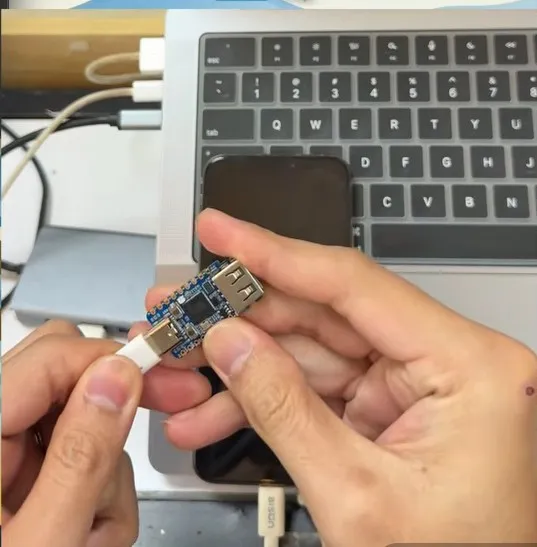
Waveshare RP2350 USB-A board used inline between the MacBook and Lightning cable to trigger the USBLiter8 DFU exploit.
How do you flash USBLiter8 firmware onto the RP2350 board?
Flashing the RP2350 board is a one-time setup step that takes under a minute on macOS before running HFZ Ramdisk. Put the board into BOOTSEL mass-storage mode, drag the matching .uf2 image (such as usbliter8.waveshare_rp2350_usb_a.uf2, ~112 KB) onto the mounted drive, and wait for the board to reboot automatically with its status LED lit.
- Select the Exact
.uf2Image: Match your exact PCB variant inside theusbliter8-v1.0folder (for exampleusbliter8.waveshare_rp2350_usb_a.uf2,usbliter8.pico2.uf2, orusbliter8.pimoroni_tiny2350.uf2). - Mount RP2350 as a Drive: Hold the BOOT button on the RP2350 board while plugging its USB-C end into your Mac until the
RP2350volume appears in Finder. - Copy & Verify LED: Copy the matching
.uf2file onto theRP2350volume — the drive ejects automatically and the orange/red board LED confirms USBLiter8 is armed and ready for inline Lightning connection.
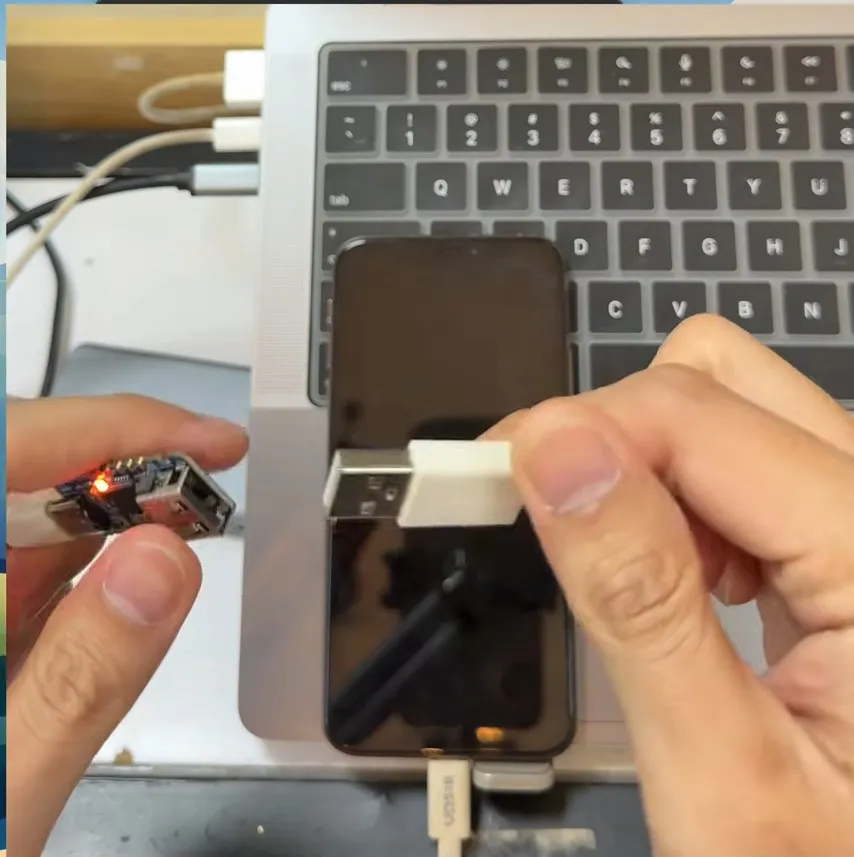
Flashed RP2350 board with active LED ready to bridge the MacBook and iPhone Lightning cable during DFU boot.
Hardware Accuracy Note (A12/A13 vs checkm8): Many online summaries loosely call every Ramdisk tool "checkm8", but checkm8 applies only to A5–A11 SoCs. On A12/A13 devices (iPhone XR/XS/11), HFZ Ramdisk v1.1 relies on the dedicated RP2350 + USBLiter8 hardware USB timing sequence (Sent bootx (control transfer + breq)) — without that flashed board, software-only DFU boot will not trigger on A12/A13.
How does the HFZ Ramdisk v1.1 passcode bypass workflow run step by step?
Always run Recovery Mode Precheck inside HFZ Activator A12/A13 Ramdisk v1.1 before purchasing your per-device ECID/SN slot on GSM24h so you confirm the device is eligible and untouched.
Stage 1: Recovery Precheck, ECID & Model-Specific Order
- Put the passcode-locked iPhone into Recovery Mode (refer to Apple Support iPhone PC/Mac connection guidance if your Mac doesn't detect Recovery Mode cleanly).
- Open HFZ Activator A12/A13 Ramdisk v1.1 on macOS and click Precheck. Wait until the log confirms Model, CPID, BDID, ECID, and iOS version (for example
Precheck complete: iOS 18.7). - Click Copy next to the ECID/identifier, visit GSM24h HFZ Ramdisk, select the exact card for your model ($3.94 XR/XS/XS Max or $4.20 11/SE 2/iPad), and complete checkout.
Stage 2: RP2350 DFU Boot, Backup Tickets, Factory Reset & Restore
- Use DFU Helper and connect the iPhone inline through your flashed RP2350 board, then click Boot until the log prints
SSH connected,Mount complete, and=== Ramdisk boot complete ===. - Click UserInfo (optional to read Owner Info) and immediately click Backup Tickets — verify the
activation_record...ziparchive (~16 KB) saves cleanly to your Mac Desktop containing bothactivation_record.plistandcommcenter.plist! - Click Factory Reset to wipe the passcode cleanly without upgrading iOS, re-enter DFU through the RP2350 board once the device reboots to Hello, click Boot again, and click Restore Tickets.
- Wait for
Ticket restore complete. Rebooting..., then let the iPhone boot straight to the unlocked lock/home screen with full cellular signal intact.
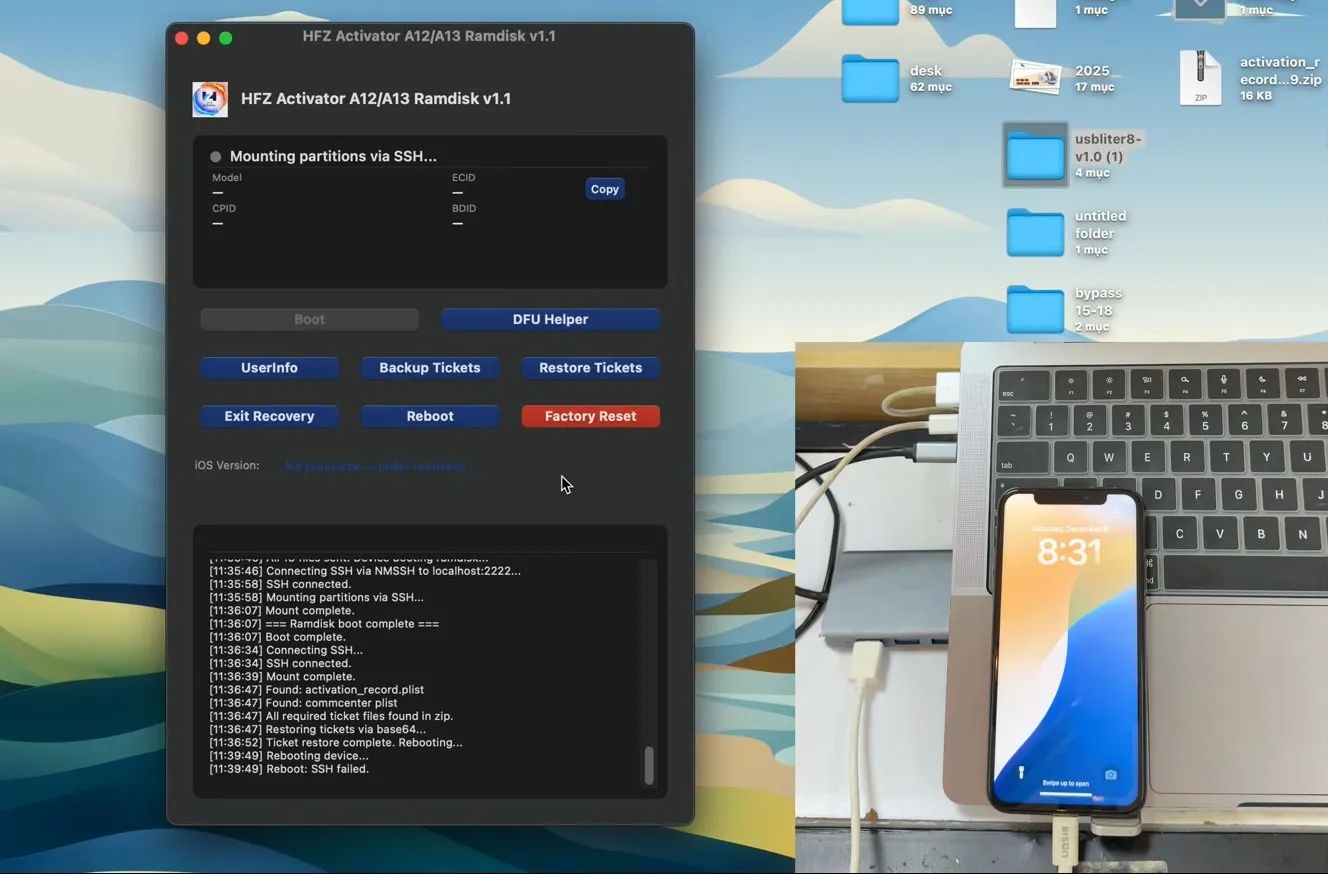
HFZ Activator A12/A13 Ramdisk v1.1 log confirming activation_record.plist and commcenter.plist restore over SSH with the unlocked iPhone XS beside the Mac.
Golden Ticket Verification Rule: Never press Factory Reset until you physically open or inspect the saved activation_record...zip on your Mac Desktop and verify it is non-empty (~16 KB with both activation_record.plist and commcenter.plist). Once erased, original SIM activation tickets cannot be regenerated if the backup file was empty or skipped.
How does HFZ Ramdisk compare with HFZ A12+ Hello and UnlockTool Ramdisk?
HFZ Ramdisk Passcode preserves cellular SIM signal only on A12 and A13 devices that have not yet been wiped to the Hello screen. By contrast, HFZ A12+ Hello targets wiped devices on Wi-Fi only, while UnlockTool Ramdisk handles older A7–A11 checkm8 iPhones at an hourly rental rate.
| Method | Lock Screen State | Supported Chipsets | Cellular Signal & Live Price |
|---|---|---|---|
| HFZ Ramdisk Passcode | Passcode / Unavailable screen (NOT wiped) | A12 & A13 (XR, XS, 11, SE 2, iPad) | Full SIM signal + Owner Info — $3.94–$4.20 (Order) |
| HFZ A12+ Hello (AiO / Win) | Already wiped Hello / Activation Lock screen | A12+ all supported models | Wi-Fi Only (No Signal) — $2.68–$3.62 (Guide) |
| UnlockTool Ramdisk | Passcode or Hello (checkm8) | A7–A11 (iPhone 5s – iPhone X) | Hourly rental from $0.30 (Guide) |
If the rightful owner has original purchase proof, Apple's official recovery route at Apple Support Activation Lock removal or permanent status services on GSM24h Apple Unlock Catalog remain the only ways to remove FMI from Apple's servers permanently.

Select the exact HFZ package matching your lock state: Passcode (/hfz-ramdisk) vs Hello No-Signal (/bypass-icloud).
Common HFZ Ramdisk errors and limitations
Watch these critical boundaries before and after restoring tickets on A12/A13 devices:
- Device Already Restored to Hello Screen: HFZ Ramdisk Passcode ONLY works when the iPhone is still on the Passcode/Unavailable screen with its original activation tickets intact on disk. Once wiped via Finder/iTunes, switch to HFZ A12+ Hello Bypass.
- "Reboot: SSH failed" After Ticket Restore: As seen at the bottom of real HFZ Ramdisk v1.1 logs, once
Ticket restore complete. Rebooting...prints, the device has already started rebooting out of Ramdisk, causing a harmlessSSH failedmessage if you press Reboot again. Simply wait for iOS to finish booting. - RP2350 Not Triggering DFU Boot: Confirm you flashed the exact
.uf2matching your PCB model, use an MFi Lightning cable plugged firmly into the RP2350 USB-A female port, and verify Precheck succeeded in Recovery Mode first. - Do Not Erase or Update iOS Afterward: Restoring or wiping the iPhone later via iTunes/Finder returns the device to Apple's Activation Lock check unless Find My iPhone was turned off officially by the owner.
Frequently Asked Questions
Does HFZ Ramdisk A12/A13 Passcode Bypass keep SIM signal and cellular calls?
Yes. Because HFZ Ramdisk backs up and restores the iPhone's original activation_record.plist and commcenter.plist from the passcode-locked device before Factory Reset, full cellular SIM signal works afterward.
Can I run HFZ Activator A12/A13 Ramdisk v1.1 on Windows?
No. HFZ Activator A12/A13 Ramdisk v1.1 runs on macOS and requires a flashed RP2350 USB-A hardware board inline with your Lightning cable.
How much does HFZ Ramdisk Passcode registration cost on GSM24h.com?
Live per-device pricing on /hfz-ramdisk is $3.94 for iPhone XR, XS, and XS Max, and $4.20 for iPhone 11, 11 Pro, 11 Pro Max, SE (2nd Gen), iPad mini 5, iPad Air 3, iPad 8th, and iPad 9th.
What happens if the iPhone was already wiped to the Hello screen?
Once wiped, original activation tickets are gone, so HFZ Ramdisk Passcode cannot restore cellular signal. For already-wiped A12+ devices, use the Hello No-Signal packages on /bypass-icloud instead.
Why do I need an RP2350 board with USBLiter8 firmware?
A12 and A13 Apple chips are not vulnerable to standard software-only checkm8. The RP2350 microcontroller running USBLiter8 firmware executes the required USB DFU timing control transfer so macOS can boot the custom SSH Ramdisk.
Does HFZ Ramdisk show Owner Info on passcode-locked devices?
Yes. Every GSM24h /hfz-ramdisk listing includes Passcode Bypass + Owner Info via the built-in UserInfo function once the Ramdisk mounts over SSH.
Order Device-Specific HFZ Ramdisk Passcode Services
Select your exact A12/A13 model on GSM24h — $3.94 (XR/XS/XS Max) or $4.20 (11 series, SE 2 & iPads) with live USD & crypto checkout.
View HFZ Ramdisk Models →
Written by: Trần Kế Khang
5 years of in-depth mobile & laptop hardware repair experience; founder of thuetaikhoan.com.vn, unlocktool.us, dienthoailaptop.vn, and gsm24h.com. Facebook · Profile & articles · About us
No comments yet. Be the first to share your thoughts!